Driving a rugged vehicle means enjoying the open road while staying safely linked with your digital life. Modern iPhone connectivity gives drivers access for maps and music without taking eyes off the road. Enhanced driving experiences come from having your favorite apps near you during long trips.
Effective Jeep Wrangler integration provides significant benefits for daily commuters and weekend adventurers alike. You gain access via wireless audio and clear hands-free calls through vehicle speakers. This setup ensures you remain focused while steering through rough ground or busy city streets in the United States.
Managing your media is easy when the interface aligns well with your hardware. Syncing these devices boosts safety by reducing manual phone usage while traveling. This guide explains necessary steps for a successful pairing between your smartphone and the media unit.
Utilizing these features keeps you updated with real-time traffic alerts and incoming messages. Let’s explore simple methods used for achieving a perfect sync and maximizing your vehicular technology. These steps will help you master the dashboard system and enjoy every mile ahead.
Key Takeaways
- Enjoy seamless wireless audio and media streaming.
- Use hands-free calling safely while driving.
- Navigate using real-time GPS and traffic alerts.
- Access essential smartphone apps instantly via the dashboard.
- Improve overall driving safety by reducing distractions.
- Quick setup process for busy vehicle owners.
What You Need Before Getting Started
The process of connecting your iPhone to your Jeep Wrangler begins with checking a few essential compatibility and setup factors. Ensuring your devices are compatible and properly set up will make the integration process smoother and more efficient.
First, it’s crucial to verify that your iPhone is running the latest version of iOS. Updating your iPhone to the latest iOS version is essential for ensuring compatibility with your Jeep Wrangler’s Uconnect system, which supports the latest Apple devices and technologies.
Next, you should check your Jeep Wrangler’s Uconnect system to ensure it is compatible with Apple devices. Most modern Jeep Wrangler models come equipped with Uconnect systems that support Apple CarPlay and Bluetooth connectivity. However, it’s a good idea to consult your vehicle’s manual or manufacturer’s website to confirm compatibility.
In addition to ensuring compatibility, you’ll need a few other things to get started. These include:
- A Lightning cable for charging and potentially for a wired CarPlay connection, depending on your setup.
- Bluetooth enabled on both your iPhone and Jeep Wrangler for wireless connectivity.
- Sufficient storage and processing power on your iPhone to handle the demands of CarPlay and other connected features.
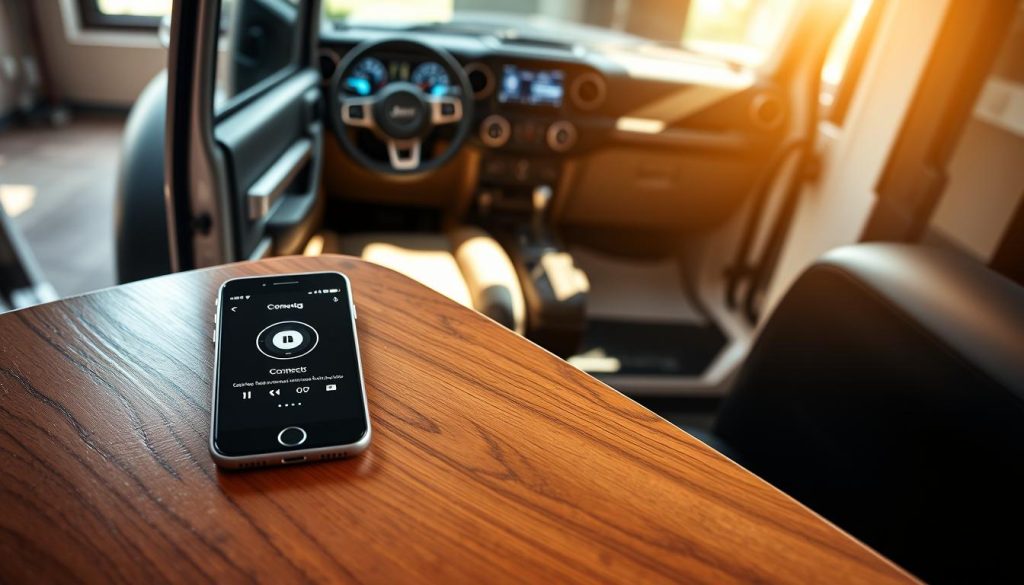
By verifying these pre-connection requirements, you’ll be well-prepared to integrate your iPhone with your Jeep Wrangler, enabling features like wireless audio streaming, hands-free calls, and full CarPlay integration for a more connected driving experience.
How to Connect iPhone to Jeep Wrangler
The process of linking your iPhone to your Jeep Wrangler can be accomplished in a few simple steps, enhancing your driving experience with integrated technology.
Connecting via Bluetooth for Wireless Audio and Calls
Bluetooth connectivity allows for wireless audio streaming and hands-free calls, making it a convenient feature for drivers.
Preparing Your iPhone for Pairing
To start, ensure your iPhone’s Bluetooth is enabled. Go to Settings > Bluetooth and toggle it on.
Initiating Pairing on Uconnect System
In your Jeep Wrangler, navigate to the Uconnect system’s Bluetooth settings and select “Pair a Device.”
Completing the Bluetooth Connection
Your Uconnect system will search for available devices. When your iPhone is detected, select it to complete the pairing process.
| Step | iPhone Action | Uconnect Action |
|---|---|---|
| 1 | Enable Bluetooth | Navigate to Bluetooth settings |
| 2 | Wait for detection | Select “Pair a Device” |
| 3 | Select Uconnect device | Confirm pairing request |
Connecting via USB Cable for Charging and Audio
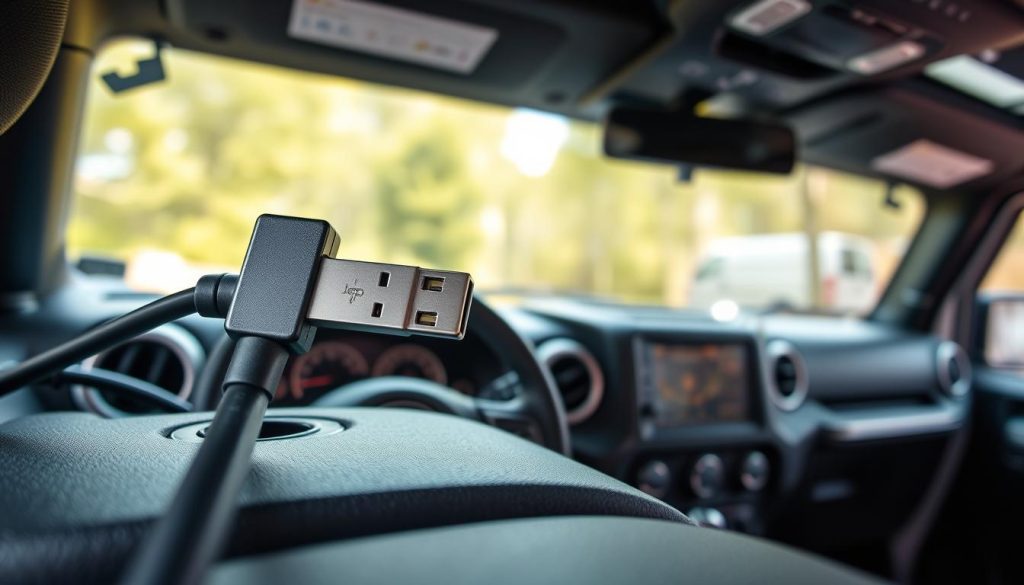
For a more stable connection and to charge your iPhone, use a USB cable.
Locating the USB Port in Your Jeep Wrangler
Check your Jeep Wrangler’s center console or dashboard for the USB port.
Establishing USB Connection
Connect your iPhone to the USB port using a compatible cable. Your Uconnect system should recognize the device.
Setting Up Apple CarPlay for Full Integration
For a more integrated experience, set up Apple CarPlay. First, ensure your Jeep Wrangler’s Uconnect system supports CarPlay.
Verifying Apple CarPlay Compatibility
Check your Uconnect system’s settings or consult your owner’s manual to verify CarPlay compatibility.
Activating Apple CarPlay
Connect your iPhone via USB and select the CarPlay option on your Uconnect screen. If you’re having trouble, visit this guide for troubleshooting tips.
Using CarPlay Features in Your Wrangler
Once activated, you can access maps, messages, and music through the CarPlay interface on your Uconnect screen.
Troubleshooting Common Connection Issues
If you’re having trouble connecting your iPhone to your Jeep Wrangler, you’re not alone, and there are several common issues that can be easily resolved.
Resolving Bluetooth Pairing Problems
Bluetooth connectivity issues can often be resolved by ensuring that both devices are in pairing mode and that the iPhone is set to discoverable. Sometimes, simply restarting both your iPhone and Jeep Wrangler’s infotainment system can resolve the issue.
Steps to resolve Bluetooth pairing issues:
- Ensure Bluetooth is enabled on your iPhone.
- Put your Jeep Wrangler’s infotainment system in pairing mode.
- On your iPhone, go to Settings > Bluetooth, and look for your Jeep Wrangler’s system name to pair.
- If paired but not connecting, try forgetting the device on your iPhone and then pairing again.
Fixing USB Connection and CarPlay Issues
USB connection issues can often be traced back to the cable or the USB port being used. Ensure you’re using a genuine Apple Lightning cable and try different USB ports in your Jeep Wrangler.
Troubleshooting CarPlay:
- Check that your iPhone is running the latest version of iOS.
- Ensure your Jeep Wrangler’s infotainment system is updated.
- Try restarting your iPhone and the vehicle’s infotainment system.
For a more detailed comparison of common issues and their fixes, refer to the following table:
| Issue | Common Cause | Solution |
|---|---|---|
| Bluetooth Not Pairing | Devices not in pairing mode | Enable pairing mode on both devices |
| USB Not Recognized | Faulty or non-Apple cable | Use a genuine Apple Lightning cable |
| CarPlay Not Connecting | Outdated iOS or infotainment system | Update iOS and infotainment system |
Addressing Audio and Call Quality Problems
Poor audio quality or call drops can be due to several factors, including interference from other devices or issues with the vehicle’s audio settings.
Improving Audio Quality:
- Check for software updates on your iPhone and Jeep Wrangler’s infotainment system.
- Adjust the audio settings on your Jeep Wrangler to optimize sound quality.
- Minimize background noise and interference by adjusting your vehicle’s audio settings or using noise-reducing features if available.
Tips for Optimal iPhone and Jeep Wrangler Integration
Enhance your driving experience with these simple yet effective tips for optimizing iPhone Jeep Wrangler integration. By following these guidelines, you can ensure a seamless and enjoyable connection between your iPhone and Jeep Wrangler.
Maximizing Battery Life During Connected Drives
To maximize battery life during connected drives, consider adjusting your screen brightness and auto-lock settings. Lowering the screen brightness or enabling auto-brightness can help conserve battery power. Additionally, disabling unnecessary features like Bluetooth and Wi-Fi when not in use can also help extend your iPhone’s battery life.
Another effective way to conserve battery life is to limit the number of resource-intensive apps running in the background. Closing unused apps and disabling background app refresh for non-essential apps can significantly reduce battery drain.
Organizing Audio Sources and Preferences
To make the most of your iPhone and Jeep Wrangler integration, it’s essential to organize your audio preferences. You can do this by setting your preferred music streaming service as the default app for music playback. This way, you can access your favorite music and playlists directly from the car’s infotainment system.
You can also customize your audio settings to prioritize the sources you use most frequently. For example, you can set your Jeep Wrangler’s infotainment system to default to Bluetooth audio or USB connectivity, depending on your preference.
- Prioritize your most frequently used audio sources
- Set default apps for music and other media playback
- Customize your audio settings for a seamless experience
Leveraging Siri for Hands-Free Operation
Siri integration is a powerful feature that allows you to control your iPhone with voice commands. To leverage Siri for hands-free operation, ensure that Siri is enabled on your iPhone and that your Jeep Wrangler’s infotainment system is configured to support Siri.
You can use Siri to make hands-free calls, send messages, and even control your music playback. Simply press and hold the voice command button on your steering wheel or say “Hey Siri” to activate Siri and give your commands.
Conclusion
Connecting your iPhone to your Jeep Wrangler enhances your driving experience, offering seamless integration for entertainment, navigation, and hands-free communication. By following the steps outlined, you can enjoy wireless audio and calls via Bluetooth, charging and audio playback through USB, and a fully integrated experience with Apple CarPlay.
This iPhone Jeep Wrangler connection summary highlights the straightforward process of setting up and troubleshooting your connection, ensuring you get the most out of your devices. With optimized integration, you can maximize your iPhone’s battery life, organize your audio preferences, and leverage Siri for a safer, more enjoyable drive.
Now that you’ve connected your devices, explore the full potential of your iPhone and Jeep Wrangler integration to elevate your driving adventures.
FAQ
Which Jeep Wrangler models support Apple CarPlay?
Most Jeep Wrangler models from 2018 onwards equipped with the Uconnect 4 or Uconnect 5 system support Apple CarPlay. To ensure compatibility, verify that your dashboard features a 7-inch or 8.4-inch touchscreen interface, which typically indicates the hardware necessary for smartphone integration.
How do I troubleshoot a failed Bluetooth pairing between my iPhone and Uconnect?
If your iPhone fails to pair, first ensure that Bluetooth is toggled on in your settings and that your device is discoverable. On the Uconnect screen, navigate to the “Phone” menu and select “Add Device.” If the connection persists in failing, try “forgetting” the vehicle in your iOS Bluetooth settings and restarting both your iPhone and the Jeep Wrangler ignition.
Can I use Apple CarPlay wirelessly in my Jeep Wrangler?
A: Wireless Apple CarPlay is available on newer Jeep Wrangler models equipped with the Uconnect 5 system. For older models with Uconnect 4, you must use a high-quality Apple-certified Lightning cable connected to the primary USB port located on the center console to activate the interface.
Why is Siri not responding when my iPhone is connected to the vehicle?
To use Siri for hands-free operation, ensure that “Listen for Hey Siri” or “Press Side Button for Siri” is enabled in your iPhone settings. Once connected to the Jeep Wrangler, you can usually trigger the assistant by long-pressing the Voice Command button on your steering wheel, allowing you to manage Apple Maps or iMessage safely while driving.
Does connecting my iPhone via USB charge the battery while playing music?
Yes, connecting your iPhone to the designated USB port in the Jeep Wrangler provides a steady power supply to maximize battery life during long drives. While Bluetooth allows for wireless audio, using the USB connection ensures your device remains charged while simultaneously providing a high-fidelity audio signal for Apple Music or Pandora.
What should I do if the Uconnect screen goes blank while using CarPlay?
A blank screen often indicates a USB connection issue. Check your cable for any visible damage and ensure it is firmly seated in the Jeep’s USB port. Additionally, verify that your iPhone is updated to the latest iOS version, as Apple frequently releases software patches to improve CarPlay stability and resolve display glitches.
How do I switch between different audio sources like SiriusXM and my iPhone?
You can easily organize audio sources by using the “Media” or “Radio” buttons on the Uconnect display. If you are using Apple CarPlay, you can toggle back to the Jeep native interface by tapping the “Uconnect” icon within the CarPlay app grid to access SiriusXM or AM/FM stations.