Is your BMW iDrive system acting up? Perhaps it’s freezing, responding slowly, or displaying error messages. Maybe you’re preparing to sell your vehicle and want to remove your personal data. Whatever your reason, performing a factory reset on your BMW iDrive system can often resolve these issues and restore optimal functionality.
In this comprehensive guide, we’ll walk you through the exact steps to reset your BMW iDrive system to factory settings, explain what happens during the process, and provide essential tips to ensure everything goes smoothly.
Why You Might Need a BMW iDrive Factory Reset
Before diving into the reset process, it’s important to understand when a factory reset is necessary. Here are the most common scenarios where resetting your iDrive system makes sense:
Performance Issues
- System freezing or crashing frequently
- Slow response to inputs
- Navigation errors or GPS problems
- Bluetooth connectivity issues
- Audio system malfunctions
Personal Data Concerns
- Preparing to sell or trade in your BMW
- Removing saved addresses and navigation history
- Clearing paired Bluetooth devices
- Resetting user profiles and preferences
- Resolving privacy concerns
Never Struggle with BMW iDrive Issues Again
Download our comprehensive BMW iDrive Reset Checklist to keep in your glove compartment. Never get stuck with system issues again!
What You Need Before Resetting Your BMW iDrive
Before proceeding with a factory reset, there are several important preparations you should make to ensure a smooth process and prevent data loss.
⚠️ Data Loss Alert
This will erase paired phones, saved addresses, custom profiles, media files, and personalized settings. Make sure to back up any important data before proceeding.
Required Tools and Preparations
Vehicle Requirements
- Vehicle parked safely
- Ignition in accessory mode
- Sufficient battery charge
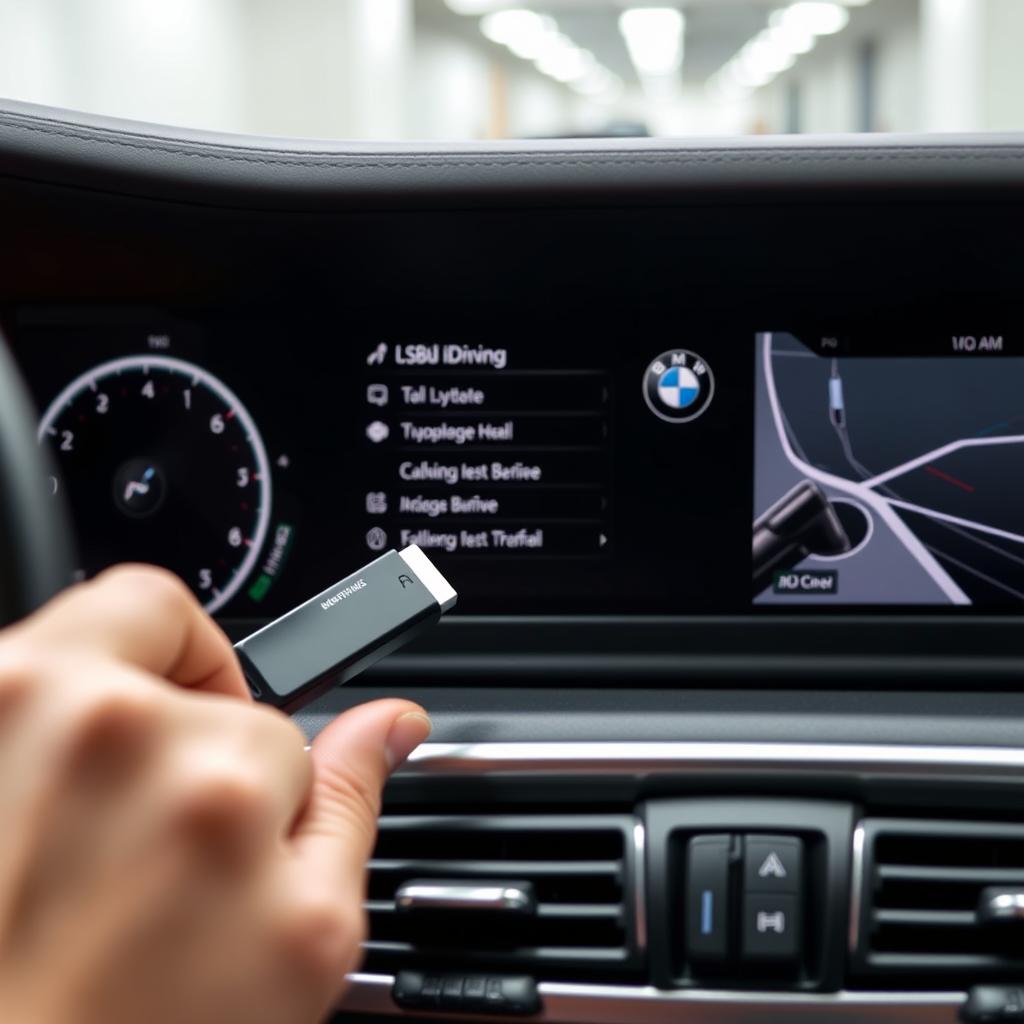
Data Backup
- USB drive (for some models)
- BMW Connected app
- Note important settings

Documentation
- Owner’s manual
- Note your VIN number
- BMW ConnectedDrive credentials
Backup Procedure
Before resetting, it’s crucial to back up your important data. Here’s how to do it:
- Export your contacts to your phone or USB drive
- Screenshot your favorite navigation destinations
- Note down your audio and climate control preferences
- Record any custom vehicle settings you’ve configured
- Ensure your BMW ConnectedDrive account is up to date

Step-by-Step BMW iDrive Factory Reset Instructions
The exact reset procedure may vary slightly depending on your BMW model and iDrive version. We’ll cover the most common methods that work across most BMW vehicles.

Method 1: Quick Reset (Soft Reset)
- Turn on the ignition to accessory mode
- Press and hold the volume button for 30 seconds
- Wait for the screen to go black
- Release the button when the system restarts
- This resolves minor glitches without data loss
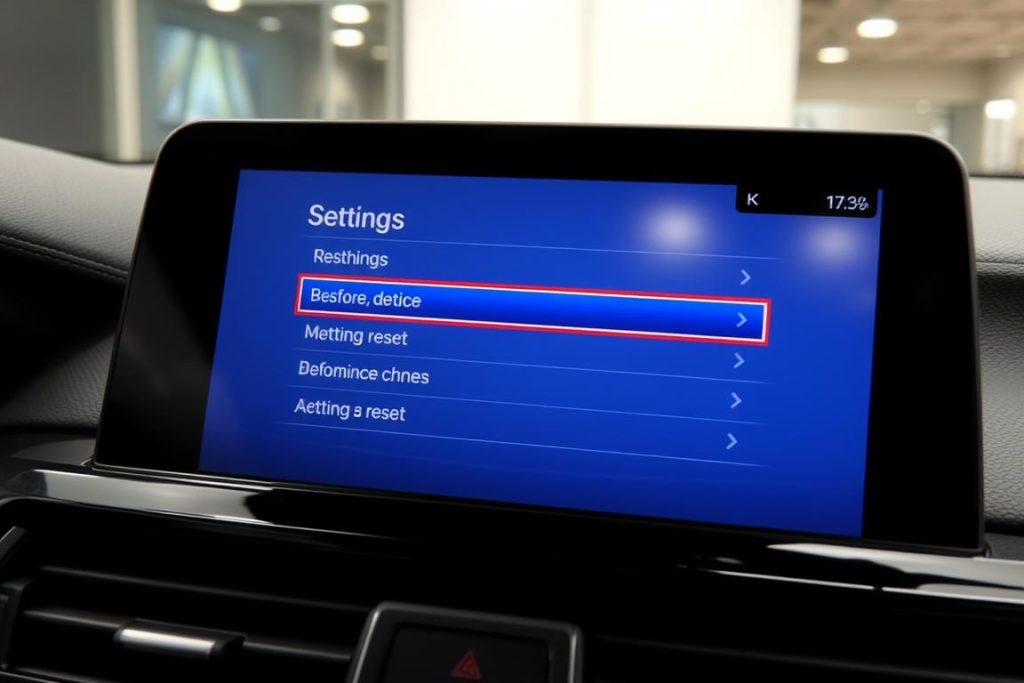
Method 2: Menu Reset
- Navigate to “Settings” in the iDrive menu
- Select “General Settings” or “System Settings”
- Choose “Reset” or “Factory Settings”
- Confirm your selection when prompted
- Wait for the system to complete the reset process
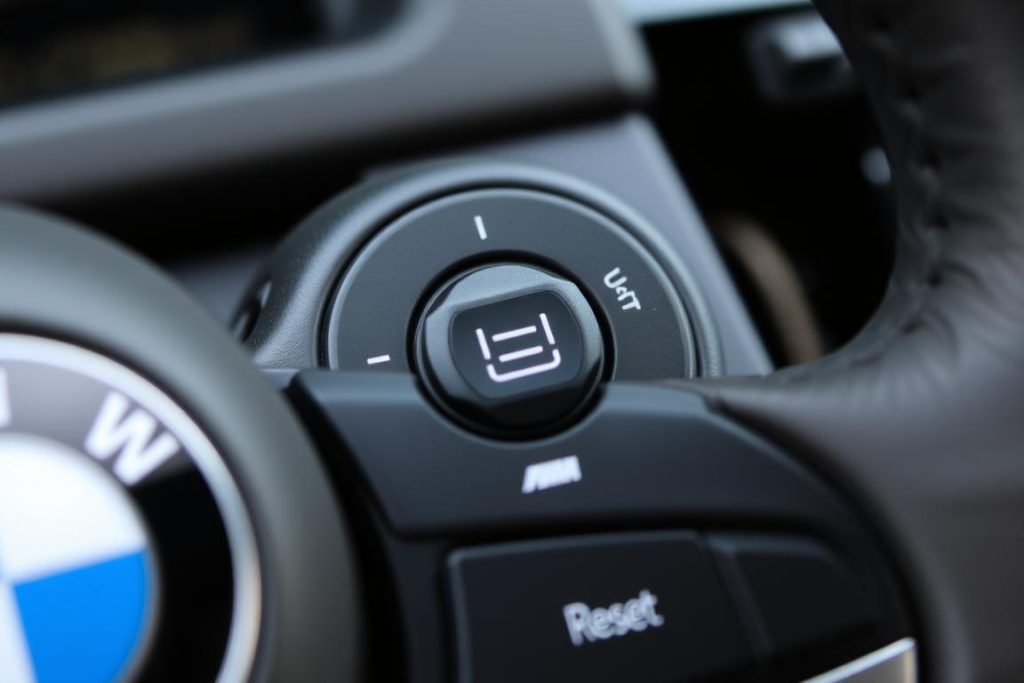
Method 3: Complete Reset (Hard Reset)
- Turn on the ignition to accessory mode
- Press and hold the volume button for 70 seconds
- System will restart twice during this process
- Release after the second restart
- This performs a more thorough system reset
Entering Engineering Mode (Advanced Users Only)
For more persistent issues, you may need to access the engineering mode to perform a complete factory reset. This should only be attempted if other methods fail.
⚠️ Caution
Engineering mode provides access to advanced system settings. Incorrect changes can cause system damage. Proceed with caution and only if you’re confident in your technical abilities.
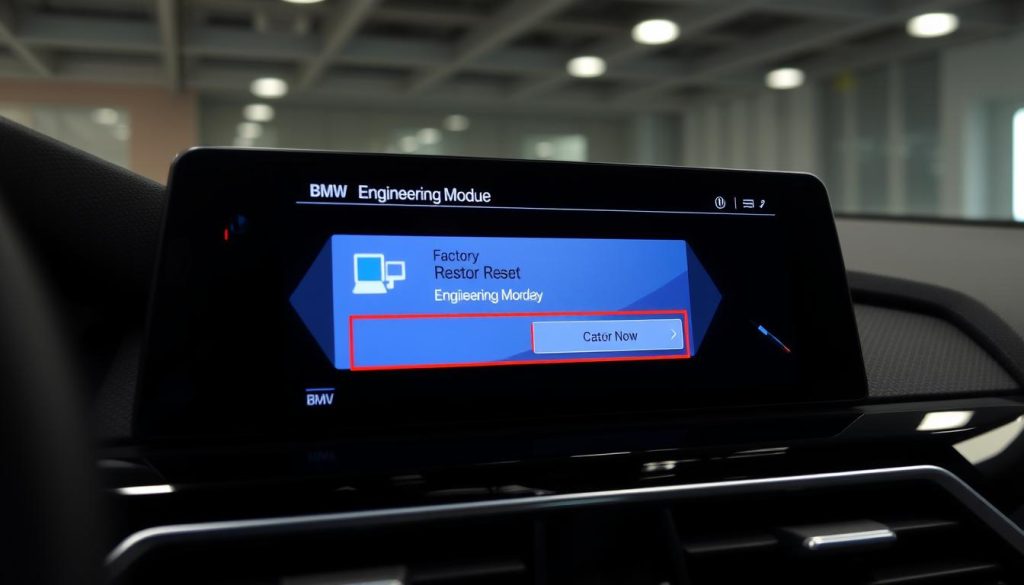
- Turn on the ignition to accessory mode
- Press and hold the Menu, Option, and Back buttons simultaneously for 8 seconds
- When the engineering menu appears, navigate to “Factory Settings”
- Select “Complete Reset” from the available options
- Confirm your selection when prompted
- Wait for the system to complete the reset process (may take several minutes)
- The system will restart automatically when finished
Confirming the Reset
After the reset process completes, you’ll need to verify that it was successful:
- The welcome screen should appear as if the system is starting for the first time
- You’ll be prompted to select language and region settings
- Previously paired devices and saved locations should be cleared
- System settings should be restored to their default values

Post-Reset Configuration Checklist
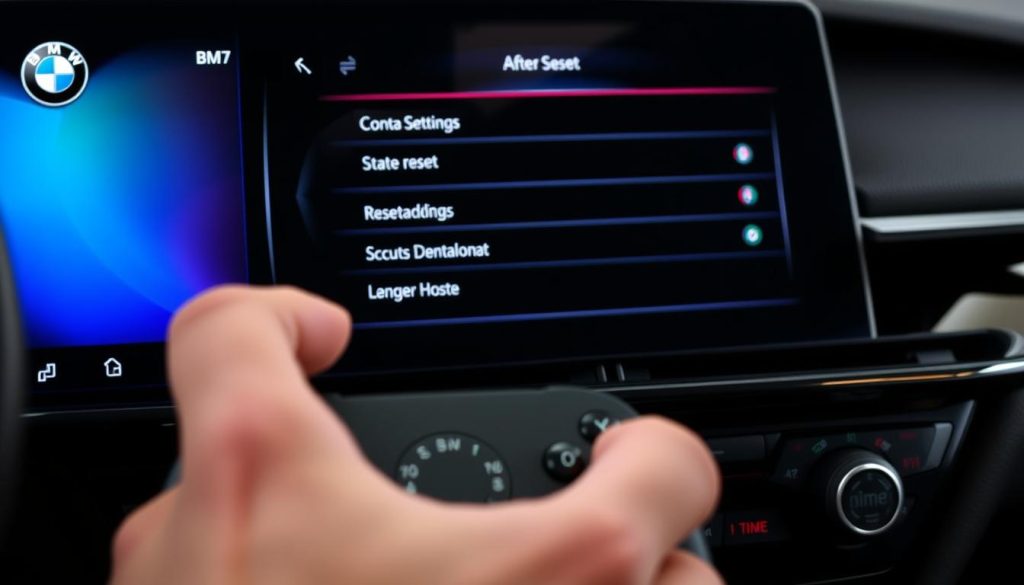
After successfully resetting your BMW iDrive system, you’ll need to reconfigure several important settings. Use this checklist to ensure you don’t miss anything essential:
| Setting Category | Configuration Tasks | Priority |
| System Basics | Set language, time, date, and units of measurement | High |
| Connectivity | Reconnect Bluetooth devices, set up WiFi, pair phone | High |
| Navigation | Re-enter home address, favorite destinations | Medium |
| Audio | Adjust equalizer, balance, fade, and audio sources | Medium |
| Driver Profiles | Recreate driver profiles and personalized settings | Medium |
| Vehicle Settings | Configure lighting, locking, climate preferences | Medium |
| ConnectedDrive | Sign in to BMW ConnectedDrive services | Low |
| Apps | Reinstall and configure apps from BMW App Store | Low |
Pro Tip
Take photos of your most important settings before resetting. This makes reconfiguration much faster and ensures you don’t forget your preferred setup.
Troubleshooting Common BMW iDrive Reset Issues
Sometimes the reset process doesn’t go as planned. Here are solutions to common issues you might encounter:
Reset Process Interrupted
If the reset process is interrupted (e.g., by battery issues or accidental button press), your iDrive system might become unresponsive or stuck in a loop.
Solution: Ensure your vehicle has sufficient battery charge and try the reset process again. If problems persist, disconnect the vehicle battery for 15 minutes, then reconnect and attempt the reset again.
Screen Frozen During Reset
If your screen freezes during the reset process and doesn’t respond to any inputs, you may need to force a system restart.
Solution: Press and hold the volume button for 70 seconds (for the hard reset). If that doesn’t work, try disconnecting the vehicle battery for 15 minutes to force a complete system shutdown.
Settings Not Fully Reset
Sometimes not all settings are reset to factory defaults, particularly if you used the soft reset method.
Solution: Try using the menu-based factory reset option or the engineering mode method for a more complete reset of all settings.
System Errors After Reset
If you encounter error messages or system malfunctions after completing a reset, there might be underlying hardware issues.
Solution: Note any error codes displayed and consult with a BMW service center. Some issues require professional diagnostic equipment to resolve.
Frequently Asked Questions About BMW iDrive Factory Reset
Will this affect my vehicle’s software updates?
No, factory resets don’t roll back iDrive OS versions. Your system will retain the current software version, but all user settings and data will be erased. After the reset, check for any available updates through the BMW ConnectedDrive portal.
Will resetting iDrive affect my vehicle’s mechanical functions?
No, the iDrive reset only affects the infotainment and connected systems. It will not impact your vehicle’s mechanical or critical electronic systems like engine management, transmission, or safety systems.
How often should I reset my BMW iDrive system?
You should only reset your iDrive system when experiencing persistent issues that can’t be resolved through normal troubleshooting. It’s not recommended as regular maintenance, as it requires reconfiguring all your settings.
Will a factory reset fix Bluetooth connectivity issues?
In many cases, yes. Bluetooth connectivity issues are often resolved by a factory reset as it clears all paired devices and connection histories. After resetting, you’ll need to pair your devices again from scratch.
Does resetting iDrive affect my HomeLink garage door programming?
Yes, a complete factory reset will typically erase HomeLink programming. You’ll need to reprogram your garage door opener and other HomeLink devices after the reset is complete.
Maintaining Your BMW iDrive System After Reset
After successfully resetting your BMW iDrive system, follow these maintenance tips to keep it running smoothly:
Regular Maintenance
- Keep your iDrive software updated
- Periodically check for system errors
- Clean the controller and screen regularly
- Limit the number of paired devices
- Avoid extreme temperatures when possible
When to Seek Professional Help
- Persistent errors after multiple reset attempts
- Hardware-related issues (screen damage, controller problems)
- System update failures
- Recurring connectivity problems
- Error codes that don’t resolve with reset
Never Struggle with BMW iDrive Issues Again
Download our comprehensive BMW iDrive Reset Checklist and keep it handy for quick reference whenever you encounter system issues.
Resetting your BMW iDrive system to factory settings can resolve many common issues and restore optimal performance. By following the steps outlined in this guide, you can confidently troubleshoot and reset your system whenever necessary. Remember to back up your important data before resetting, and take your time reconfiguring your settings afterward for the best experience.
⚠️ Data Loss Alert
This will erase paired phones, saved addresses, and custom profiles. Always back up important data before performing a factory reset.