As a Tesla owner, setting your Tesla home location is a crucial step in optimizing your vehicle’s navigation and overall driving experience. This simple configuration allows you to receive personalized driving directions and enjoy optimized energy management.
Using either your vehicle’s touchscreen or the Tesla mobile app, you can easily configure your Tesla navigation settings to suit your needs. By doing so, you’ll be able to navigate more efficiently and make the most out of your Tesla’s advanced features.
Key Takeaways
- Learn how to configure your Tesla’s home location for improved navigation.
- Understand the benefits of setting your home location, including personalized driving directions.
- Discover how to use the Tesla mobile app to adjust your navigation settings.
- Optimize your Tesla’s energy management by setting your home location.
- Enhance your overall driving experience with customized navigation.
The Importance of Setting Your Tesla Home Location
Establishing your home location on your Tesla is more than just a convenience; it’s essential for optimizing various vehicle functions. With your home location set, you can enjoy a more streamlined driving experience, leveraging features that make your Tesla even more intuitive and user-friendly.
Enhanced Navigation and Routing
Setting your home location allows for more accurate and personalized Tesla navigation. Your Tesla can provide directions from your home address, making it easier to plan your trips. This feature is particularly useful for frequent commutes or regular visits to favorite destinations.
Energy Management and Range Optimization
With your home location set, Tesla’s navigation system can suggest the most energy-efficient routes, helping you conserve battery life. This is especially beneficial for long trips or when you’re driving in unfamiliar areas.
Smart Features That Utilize Home Location
Various smart features in your Tesla, such as automated climate control and personalized entertainment settings, can be triggered based on your arrival or departure from your home. This enhances your overall driving experience, making it more comfortable and enjoyable.
| Feature | Benefit |
|---|---|
| Enhanced Navigation | Personalized directions from your home address |
| Energy Management | Optimized routes for better energy efficiency |
| Smart Features | Automated settings for climate control and entertainment |

By setting your home location, you can unlock these features and enjoy a more integrated and efficient driving experience with your Tesla.
How to Set Home Location on Tesla Using the Touchscreen
Setting your home location on your Tesla using the touchscreen is a straightforward task that offers numerous benefits, including enhanced navigation and energy management. The process involves a few simple steps that may vary slightly depending on your Tesla model.
Accessing the Navigation Settings Menu
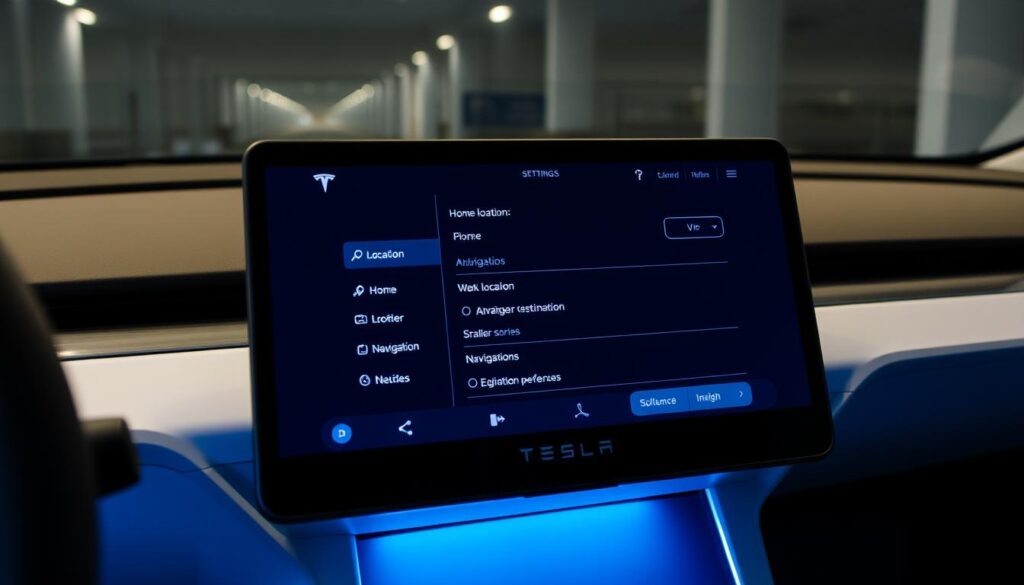
To begin, you need to access the navigation settings menu on your Tesla’s touchscreen. This is typically done by tapping on the “Navigation” tab on the top menu for Model S and Model X, or by going to “Controls” and then selecting “Navigation” for Model 3 and Model Y. Once in the navigation settings, you can proceed to set your home location.
Step-by-Step Process for Different Tesla Models
The steps to set your home location may vary depending on the Tesla model you own. Below is a breakdown for different models:
Model S and Model X Process
For Model S and Model X, follow these steps:
- Tap on the “Navigation” tab.
- Select “Set Home Location.”
- Enter your home address using the on-screen keyboard.
- Confirm the location by tapping “OK.”
Model 3 and Model Y Process
For Model 3 and Model Y, the process is as follows:
- Go to “Controls.”
- Select “Navigation.”
- Tap on “Set Home Location.”
- Enter your address and confirm.
| Tesla Model | Steps to Set Home Location |
|---|---|
| Model S & Model X | Navigation > Set Home Location |
| Model 3 & Model Y | Controls > Navigation > Set Home Location |
Confirming Your Home Location is Properly Set
After setting your home location, it’s crucial to confirm that it’s properly saved. You can do this by checking the navigation settings again or by using the “Navigate to Home” feature to ensure it directs you to the correct address. If the location is incorrect, you can edit it by following the same steps used to set it initially.
By following these steps, you can ensure that your Tesla’s home location is accurately set, allowing you to enjoy the full range of benefits provided by Tesla’s smart features and navigation system.
Setting Home Location via the Tesla Mobile App
The Tesla mobile app offers an alternative and user-friendly way to set your home location, enhancing your overall Tesla experience. This method is particularly useful for those who prefer managing their vehicle’s settings remotely or need to update their home location frequently.
Required App Setup and Permissions
To set your home location via the Tesla mobile app, you first need to ensure that the app is properly set up on your device and has the necessary permissions. This includes:
- Downloading and installing the latest version of the Tesla app from your device’s app store.
- Logging in to your Tesla account within the app.
- Granting the app permission to access your device’s location services.
- Ensuring that your device is connected to the internet.
Mobile App Configuration Steps
Once your app is set up, follow these steps to configure your home location:
- Open the Tesla app and navigate to the ‘Location’ or ‘Settings’ section.
- Select ‘Home Location’ and enter your address or allow the app to access your current location.
- Confirm that the location is correct on the map provided.
- Save the changes to update your Tesla’s home location.
Syncing Between Your Phone and Vehicle
After setting your home location on the app, it will sync with your Tesla vehicle. This process is usually automatic, provided both your device and Tesla are connected to the internet. To ensure seamless syncing:
- Keep your Tesla app updated.
- Ensure your Tesla vehicle’s software is up to date.
- Maintain a stable internet connection for both your device and Tesla.
By following these steps, you can easily manage your Tesla’s home location using the mobile app, enhancing your navigation and energy management capabilities.
Troubleshooting Common Issues When Setting Home Location
Encountering problems when setting your Tesla’s home location can be frustrating, but understanding how to troubleshoot these issues can help. While the process is generally straightforward, some users may experience difficulties that can be resolved with the right steps.
Location Services Not Working Properly
If your Tesla’s location services are not functioning correctly, it may be due to settings on your vehicle or issues with your account. Ensure that location services are enabled on your Tesla by checking the settings menu. If the problem persists, try restarting your vehicle or checking for any software updates.
Updating or Changing an Existing Home Location
To update or change your home location, navigate to the navigation settings on your Tesla’s touchscreen. If you’re having trouble saving the new location, try restarting your Tesla or checking that your vehicle’s software is up to date. You can also use the Tesla mobile app to update your home location and sync it with your vehicle.
Resolving Sync Problems Between App and Vehicle
Sync issues between the Tesla app and your vehicle can be resolved by ensuring that both are connected to the internet and that your app is up to date. If problems persist, try logging out and back into your Tesla account on the app, or restart both your phone and vehicle.
| Issue | Troubleshooting Step |
|---|---|
| Location Services Not Working | Check Tesla settings, restart vehicle, update software |
| Updating Home Location | Use Tesla touchscreen, restart vehicle, update software |
| Sync Problems | Check internet connection, update Tesla app, restart phone and vehicle |
Conclusion
Setting your home location on your Tesla is a straightforward process that unlocks a range of benefits, enhancing your overall driving experience. By configuring your Tesla’s home location, you can enjoy a more personalized and intuitive navigation system, optimized energy management, and access to various smart features.
The Tesla navigation benefits are numerous, with your vehicle able to provide more accurate routing and directions based on your home location. This, combined with optimized energy management, ensures that your Tesla is always ready to go when you need it.
In summary, setting your Tesla home location is an essential step in getting the most out of your vehicle. By following the steps outlined in this article, you can easily configure your Tesla’s home location using either the touchscreen or the Tesla mobile app, and start enjoying the setting home location benefits.
With your home location set, you can experience the full range of Tesla’s smart features, tailored to your specific needs and preferences. Whether you’re a new Tesla owner or a seasoned driver, configuring your home location is a simple yet powerful way to enhance your Tesla ownership experience.
FAQ
How do I set my home location on my Tesla using the touchscreen?
To set your home location on your Tesla using the touchscreen, access the navigation settings menu, and follow the step-by-step process for your specific Tesla model, such as Model S, Model X, Model 3, or Model Y.
Can I set my Tesla’s home location using the Tesla mobile app?
Yes, you can set your Tesla’s home location using the Tesla mobile app by ensuring the required app setup and permissions, configuring your home location on the app, and syncing the information with your vehicle.
What are the benefits of setting my home location on my Tesla?
Setting your home location on your Tesla provides several benefits, including enhanced navigation and routing, energy management and range optimization, and access to smart features that utilize your home location.
Why is my Tesla’s location services not working properly?
If your Tesla’s location services are not working properly, check your Tesla’s settings to ensure that location services are enabled, and consider restarting your Tesla or checking for software updates.
How do I update or change an existing home location on my Tesla?
To update or change an existing home location on your Tesla, access the navigation settings menu on your touchscreen or use the Tesla mobile app, and follow the steps to reconfigure your home location.
Why is my Tesla app not syncing with my vehicle?
If your Tesla app is not syncing with your vehicle, check that your app is properly set up and has the necessary permissions, and ensure that your vehicle is connected to the same account as the app.
Can I set my home location on multiple Tesla vehicles?
Yes, you can set your home location on multiple Tesla vehicles by configuring the home location on each vehicle’s touchscreen or through the Tesla mobile app, and ensuring that all vehicles are connected to the same account.