As electric vehicle owners, Tesla drivers are always on the lookout for convenient and efficient charging solutions. Blink Charging Stations offer a reliable and widespread network for charging on the go.
Tesla owners can easily charge their vehicles at Blink Charging Stations, making long trips and daily commutes hassle-free. The compatibility between Tesla vehicles and Blink Charging Stations provides a seamless charging experience.
Key Takeaways
- Blink Charging Stations are compatible with Tesla vehicles.
- Charging your Tesla at Blink is convenient and efficient.
- Tesla drivers can easily locate Blink Charging Stations.
- Using Blink Charging Stations with Tesla vehicles is a straightforward process.
- Tesla owners can enjoy a seamless charging experience with Blink.
Understanding Blink Charging Networks and Tesla Compatibility
With the growing number of Tesla owners, it’s essential to understand how Blink Charging Networks operate and their compatibility with Tesla vehicles. Blink Charging is a prominent provider of electric vehicle charging solutions, offering a range of charging stations across the United States.
What Are Blink Charging Stations?
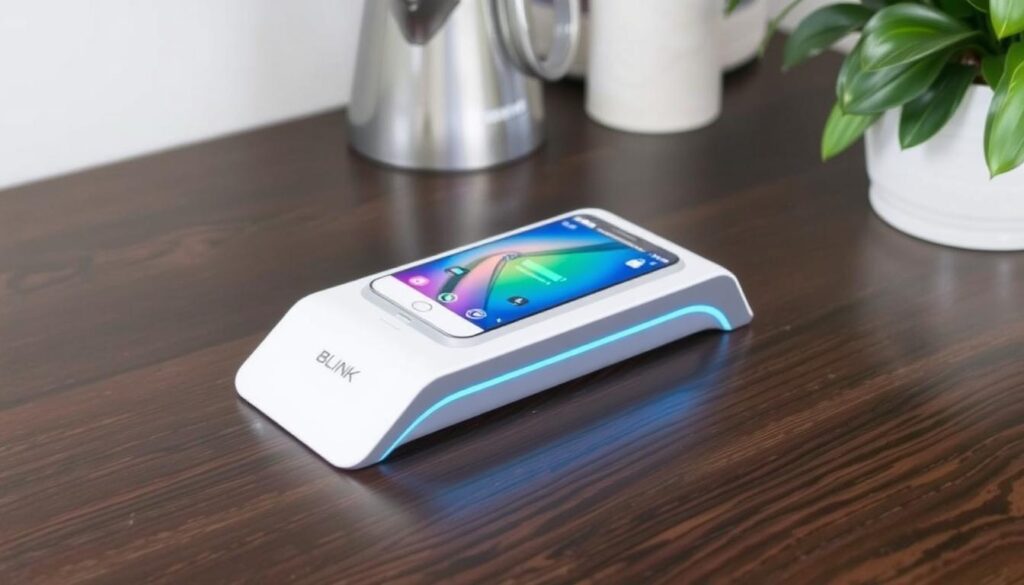
Blink Charging Stations are public or semi-public charging points designed to recharge electric vehicles. These stations are equipped with various types of connectors to accommodate different vehicle models, including Tesla.
Types of Blink Chargers Available
Blink offers several types of chargers, including Level 2 chargers, which provide a moderate charging speed, and DC Fast Chargers, which can charge vehicles much more quickly. The specific types of chargers available can vary by location.
Tesla Compatibility with Non-Tesla Networks
Tesla vehicles can be charged at non-Tesla charging networks, including Blink, using appropriate adapters. The compatibility varies by Tesla model.
Model S, 3, X, and Y Compatibility
Newer Tesla models, such as the Model S, 3, X, and Y, are equipped with a CCS (Combined Charging System) port or can use an adapter for charging at non-Tesla stations. The following table summarizes the charging compatibility:
| Tesla Model | CCS Adapter Required | Blink Charging Compatibility |
|---|---|---|
| Model S | Yes | Compatible |
| Model 3 | Yes | Compatible |
| Model X | Yes | Compatible |
| Model Y | Yes | Compatible |
Older Tesla Models Considerations
Older Tesla models may require specific adapters for charging at Blink stations. It’s essential to check the model’s specifications and the type of connector used by the Blink Charging Station.
Preparing Your Tesla for Blink Charging
Getting your Tesla ready to charge at Blink involves a few simple steps. First, you’ll need to ensure you have the correct adapter for your vehicle.
Required Adapters for Tesla Vehicles
Tesla vehicles use a proprietary charging connector, so you’ll need a J1772 adapter to charge at non-Tesla stations like Blink.
J1772 Adapter Usage
The J1772 adapter allows your Tesla to connect to Blink Charging Stations. To use it, simply plug the adapter into your Tesla’s charging port and then connect the Blink charger to the adapter.
Where to Store Your Adapter in Your Tesla
It’s a good idea to store your J1772 adapter in your Tesla’s frunk or glove compartment so it’s easily accessible when you need it.
Setting Up Your Blink Account
To start charging, you’ll need to set up a Blink account. This can be done through the Blink Charging app, where you’ll enter your payment information and membership preferences.
Payment Methods and Membership Options
Blink Charging offers various payment methods and membership options. You can choose to pay per charge or opt for a membership plan that suits your charging needs.
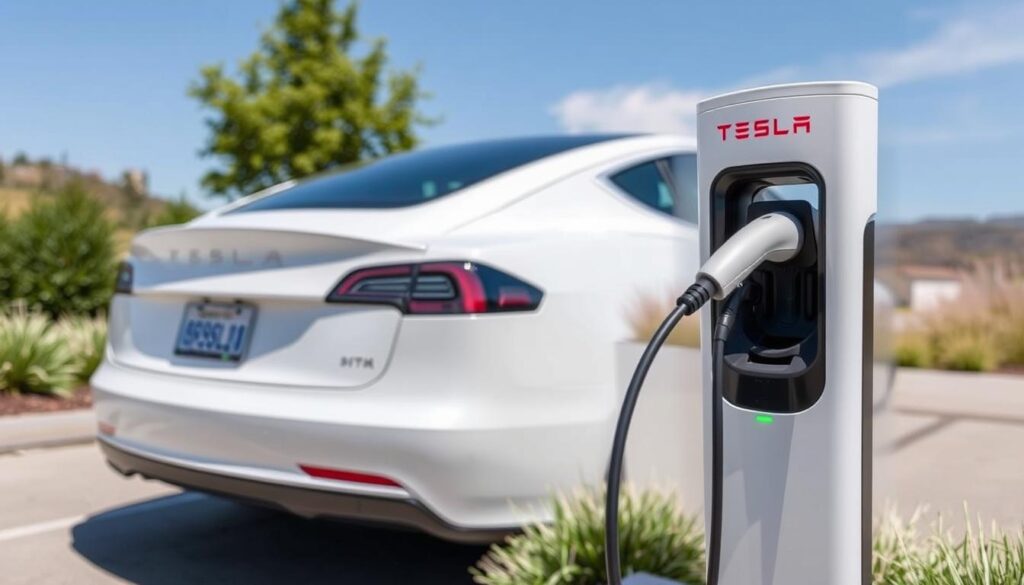
Locating Blink Charging Stations
Tesla owners can locate Blink Charging Stations using various navigation methods. The process is designed to be user-friendly, ensuring that drivers can easily find charging points on their route.
Using the Blink Mobile App
The Blink mobile app is a primary tool for locating Blink Charging Stations. It provides a map view of nearby stations, along with their status (available or in-use). The app also offers filtering options to refine your search based on your needs.
Alternative Navigation Methods
Besides the Blink app, Tesla owners can use other navigation methods to find Blink Charging Stations.
Tesla Navigation Integration
Tesla’s built-in navigation system can be used to find Blink Charging Stations. While the integration is not direct, third-party apps can help.
Third-Party EV Charging Apps
Several third-party apps aggregate charging station data, including Blink Charging Stations. These apps can be used within Tesla’s navigation system or as standalone tools.
Verifying Station Availability Before Arrival
Before heading to a Blink Charging Station, it’s a good practice to verify its availability. The Blink app typically provides real-time status updates. Here’s a summary of the station status information usually available:
| Station Status | Description |
|---|---|
| Available | The station is ready for use. |
| In Use | The station is currently being used. |
| Offline | The station is currently not operational. |
How to Use Blink Charging Station with Tesla: Step-by-Step Guide
Charging your Tesla at a Blink Charging Station is a straightforward process. By following the steps outlined below, you can ensure a smooth and efficient charging experience.
Arriving at the Station
Upon arriving at the Blink Charging Station, locate the charger and ensure it’s available for use. Check the station’s status on the Blink app or the station’s display screen to confirm it’s operational.
Initiating the Charging Session
To start charging, you’ll need to initiate the session using one of the following methods:
Using the Blink App
Open the Blink app, navigate to the “Start Charging” section, and follow the prompts to begin the charging session. Ensure your Tesla is connected to the charger.
Using a Blink RFID Card
If you have a Blink RFID card, tap it on the reader at the charging station to start the charging session. This method is quick and convenient.
Guest Charging Options
For guest charging, use the Blink app to pay for your session. You may need to create a guest account or log in if you already have a Blink account.
Connecting Your Tesla to the Charger
Once the charging session is initiated, connect your Tesla to the charger using the appropriate adapter. Make sure the connection is secure to avoid any interruptions during charging.
Monitoring Your Charging Session
Monitor the charging progress through the Blink app or the Tesla’s onboard display. You can track the charging status, including the amount of charge and estimated completion time.
Ending the Charging Session Properly
To end the charging session, return to the Blink app and stop the charging process. Then, safely disconnect your Tesla from the charger. Always follow the proper shutdown procedure to avoid any issues.
By following these steps, you can efficiently charge your Tesla at a Blink Charging Station. Enjoy the convenience of Blink’s charging network for your electric vehicle needs.
Troubleshooting Common Issues
Encountering issues while charging your Tesla at a Blink Charging Station can be inconvenient, but most problems have simple solutions that can be applied with the right guidance.
Connection Problems and Solutions
Connection issues between your Tesla and a Blink Charging Station can stem from various factors, including adapter compatibility or station malfunction. Ensure you’re using the correct adapter for your Tesla model and that it’s properly connected to both the vehicle and the charger.
If the issue persists, try restarting the charging session or checking the station’s display for error messages.
Payment and Account Troubleshooting
Payment issues can arise due to account settings, expired payment methods, or membership status. Verify your account details and ensure that your payment method is up-to-date.
- Check your Blink account status to ensure it’s active.
- Update your payment information if necessary.
- Contact Blink support if issues persist.
Charging Speed Concerns
Charging speeds can vary based on several factors, including the type of charger and your Tesla’s battery level.
Level 2 vs DC Fast Charging Expectations
Level 2 chargers provide a slower charge compared to DC Fast Chargers. Understand the capabilities of the charging station you’re using.
Factors Affecting Charging Speed
Several factors can influence charging speed, including the charger’s power output, your vehicle’s battery capacity, and ambient temperature.
| Factor | Impact on Charging Speed |
|---|---|
| Charger Power Output | Higher power output generally results in faster charging. |
| Battery Capacity | Larger batteries may charge more slowly as they near full capacity. |
| Ambient Temperature | Extreme temperatures can affect charging efficiency. |
What to Do When a Station Is Offline or Damaged
If a Blink Charging Station is offline or damaged, report the issue through the Blink app or website. This helps ensure the station is repaired or restored promptly.
Charging Etiquette and Best Practices
As a Tesla owner using Blink Charging Stations, it’s essential to understand the etiquette and best practices to ensure a smooth experience for everyone. This includes being mindful of how long you occupy a charging space, properly managing your vehicle after charging, and reporting any issues with the charging stations.
How Long to Occupy a Charging Space
It’s considered courteous to move your Tesla once it’s fully charged, allowing other users to access the charging station. Occupying a charging space for an extended period after your vehicle is fully charged can inconvenience other users.
Moving Your Vehicle After Charging
After your Tesla is fully charged, please move to a regular parking spot if available, or leave the charging area to allow others to charge their vehicles.
Reporting Station Issues
If you encounter any issues with a Blink Charging Station, such as a malfunctioning charger or an obstructed access path, report it to Blink’s customer service promptly.
Cost-Saving Tips for Blink Charging
To save on charging costs, consider charging during off-peak hours or taking advantage of Blink’s membership plans that offer discounted rates.
Comparing Costs: Blink vs. Supercharging
Here’s a comparison of the costs between Blink Charging and Tesla Supercharging:
| Charging Network | Cost per kWh | Membership Benefits |
|---|---|---|
| Blink Charging | $0.40 – $0.60 | Discounted rates, special promotions |
| Tesla Supercharging | $0.50 – $0.70 | Convenience, fast charging speeds |
By following these guidelines and being mindful of the costs, Tesla owners can enjoy a convenient and cost-effective charging experience with Blink Charging Stations.
Conclusion
Using a Blink Charging Station with your Tesla is a straightforward process once you understand the necessary steps and etiquette. By following this guide, Tesla owners can efficiently charge their vehicles at Blink stations across the United States.
To recap, preparing your Tesla involves acquiring the required adapters and setting up a Blink account. Locating Blink Charging Stations is easily done through the Blink mobile app or alternative navigation methods. When charging, ensure you follow the step-by-step guide to initiate and end your charging session properly.
Understanding how to troubleshoot common issues and practicing charging etiquette will enhance your overall experience. By being mindful of charging times, moving your vehicle after charging, and reporting any station issues, you contribute to a positive charging environment for all users.
As a Tesla owner, having a comprehensive Tesla charging guide at your disposal can make a significant difference in your electric vehicle ownership experience. Blink Charging Stations offer a reliable and convenient way to keep your Tesla powered up and ready to go.
FAQ
Is my Tesla compatible with Blink Charging Stations?
Most Tesla models, including Model S, 3, X, and Y, are compatible with Blink Charging Stations using a J1772 adapter.
What type of adapter do I need to charge my Tesla at a Blink Charging Station?
You will need a J1772 adapter to charge your Tesla at a Blink Charging Station. This adapter allows your Tesla to connect to the Blink charger’s J1772 connector.
How do I initiate a charging session at a Blink Charging Station?
You can initiate a charging session using the Blink app, a Blink RFID card, or through guest charging options, depending on your account settings and preferences.
Can I use Blink Charging Stations with older Tesla models?
Yes, older Tesla models can be used with Blink Charging Stations, but you may need to check compatibility and potentially use additional adapters or converters.
How do I monitor my charging session at a Blink Charging Station?
You can monitor your charging session through the Blink app, which provides real-time updates on charging status, energy transferred, and estimated time to completion.
What should I do if a Blink Charging Station is offline or damaged?
If a Blink Charging Station is offline or damaged, you should report the issue through the Blink app or their customer support channels to ensure it gets addressed.
How long can I occupy a charging space at a Blink Charging Station?
It’s recommended to move your vehicle once charging is complete to allow other EV owners to use the station. Occupancy guidelines may vary, so it’s best to check the Blink app or station signage.
Are there cost-saving tips for using Blink Charging?
Yes, consider using the Blink app to monitor and manage your charging sessions, taking advantage of membership options, and comparing costs with other charging networks like Tesla Supercharging.
Can I charge my Tesla at a Blink Charging Station for free?
Generally, no. Blink Charging is a paid service. You can check the Blink app or their website for pricing details and membership options that may offer cost savings.
How do I compare the costs of Blink Charging versus Tesla Supercharging?
You can compare costs by checking the pricing on the Blink website or app and comparing it with Tesla’s Supercharging rates, considering factors like your location, driving habits, and the specific Tesla model you own.