GALA names a speed-dependent audio feature that raises or lowers volume as vehicle speed changes. In common owner discussions, the term refers to speed-sensitive volume, designed to keep speech and music clear as road noise rises.
This short guide will give US owners practical info on meaning, purpose, where to find the setting, how to adjust it, and basic troubleshooting for popular head units. Expect model-year differences; menus and behavior can vary by system and radio type.
The real-world problem it solves is simple: cabin noise climbs with speed, so steady volume helps maintain a consistent listening experience. You’ll also see how this feature interacts with equalizer, balance, and noise compensation so the sound setup works as a whole.
This section is for drivers who notice volume shifts with speed or want clearer audio on highways. Read on to learn where to view the option and how to tweak it safely.
Key Takeaways
- GALA is a speed-sensitive volume feature that helps balance sound as road noise changes.
- Expect variation by model year and head unit; check your vehicle menus and manual.
- It affects overall sound along with EQ and noise compensation settings.
- Use the setting if you notice volume swings on highways or city roads.
- This guide covers meaning, location, adjustment, and basic troubleshooting steps.
What Is Gala In Audi Cars? Meaning, purpose, and how it works with speed-based volume
When road noise climbs, some systems nudge the audio up; this part explains that behavior and why it helps clarity.
How the system changes audio as speed rises
GALA is a speed-linked control that adjusts cabin output as the vehicle moves. As speed increases, wind and tire noise rise and the system raises volume gradually. When you slow down, it reduces output so sound does not blast at stoplights.

Why manufacturers add this feature
Engineers at Audi and Bang & Olufsen stress clarity whether you are on a busy street or the interstate. The goal is to keep spoken audio and music intelligible when ambient noise changes.
The change is subtle and progressive, not a sudden jump. Many MMI touch response setups let you fine-tune balance and EQ to work alongside this automatic level. Some vehicles show the feature as a configurable setting or under an alternate label like speed-sensitive volume.
- Best for podcasts, news, and navigation prompts that sit in midrange frequencies.
- Designed to complement, not override, personal volume preference.
How to find and adjust GALA settings in your Audi radio or MMI menu
Finding the speed-sensitive control takes a few simple steps in most MMI or radio menus. Start with the sound area, then look for labels such as Speed-dependent volume or similar wording. Menu names vary by model and year.
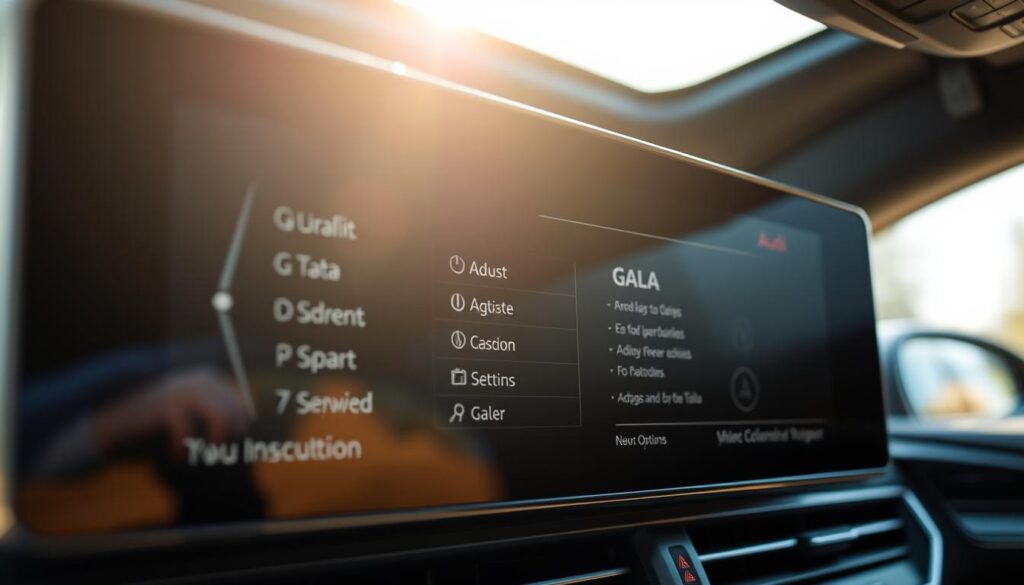
Where to look in the menu
Typical paths: Settings → Sound → Speed-dependent volume or Sound settings → Volume control → Speed. If the option is not visible, check the owner manual or the system’s advanced sound page.
How to pick the right level
The level sets how aggressively the system raises volume as speed rises.
- Choose a familiar track and set a comfortable baseline at low speed.
- Drive to a typical highway speed and note the change.
- Adjust one level at a time until clarity is steady without overcorrection.
Balancing comfort and performance
Use a lower level for stop-and-go city time to avoid constant swings. Use a higher level for long highway commutes to maintain intelligibility.
| Setting | Best for | Speaker type |
|---|---|---|
| Low | Dense city streets, frequent stops | High-output systems (less compensation) |
| Medium | Mixed urban and highway routes | Standard factory systems |
| High | Long highway time with sustained road noise | Smaller speakers or cabins with high road noise |
Pair level changes with EQ and balance. Boosting midrange can improve vocal clarity and reduce the need for aggressive speed-based volume control. Note your chosen level after a week of driving to confirm it works across routes.
Troubleshooting GALA and common modifications discussed by Audi owners
Begin with basic checks that fix most complaints: settings, level, and a steady test route.
Step one: confirm the feature is enabled and the selected level is not at minimum. Test on a repeatable stretch of road with steady speed and the same baseline volume to verify change against rising road noise.
Expect modest shifts. If changes are absent, investigate how the speed signal reaches the head unit. Many models use the infotainment/CAN pathway but some do not deliver that data to the radio.
Forum-documented wiring exception
Home forums and posts often show a practical exception for the A2. One member reported running a wire from pin 31 on the blue 32-pin instrument cluster connector to pin 1 on the black 8-pin radio connector to enable the feature.
| Topic | Notes | Risk |
|---|---|---|
| Wiring mod | Pin 31 (cluster) → Pin 1 (radio) | High — electrical faults possible |
| Menu checks | Enable feature; confirm level | Low |
| Road test | Same route, steady acceleration | Low |
When to use the manual or call a pro
Use the manual for menu paths and battery-disconnect steps. Seek a qualified installer for wiring or if you see unexpected noise, power faults, or unclear info. Posts and replies across home forums show many members thanking others for advice, but they also stress safety.
For annoying swings, try recalibrating level and EQ before assuming a dead system. Proper adjustment usually fixes the issue without mods.
Conclusion
Summing up, a few methodical steps will help you get steady audio that fits your cabin and commute.
Be sure to insert a strong, clear baseline before you adjust anything. Set a comfortable volume at low speed, then raise the level and drive a typical route to confirm the change handles road noise without overboosting.
Pair this with basic balance and EQ adjustments for cleaner results than relying on volume alone. Personal taste, tires, and road surfaces affect the best level, so expect to fine-tune across several trips.
If the feature still feels off, revisit menus, check the owner manual, or seek professional help for wiring or diagnostics. For a fuller walkthrough, see the detailed guide for additional tips and system paths to view.