The Uconnect system in your Jeep Grand Cherokee is a sophisticated technology that enhances your driving experience. However, like any complex system, it can sometimes malfunction or freeze, requiring a reset.
Resetting the Jeep Grand Cherokee screen can resolve issues such as a frozen display, unresponsive touch inputs, or incorrect settings. This guide will walk you through three easy steps to reset your Uconnect system, ensuring your vehicle’s infotainment system operates smoothly.
Key Takeaways
- Resetting the Uconnect system can resolve common issues like a frozen screen.
- The process involves three straightforward steps.
- Resetting can improve the overall performance of your vehicle’s infotainment system.
- It’s a simple procedure that can be done at home.
- No technical expertise is required to reset the Uconnect system.
Understanding Your Jeep Grand Cherokee’s Infotainment System
Understanding the intricacies of your Jeep Grand Cherokee’s Uconnect system can significantly improve your interaction with the vehicle. The Uconnect system is a sophisticated infotainment technology that has evolved over the years, offering various features and functions that enhance the driving experience.
Different Uconnect Versions Across Model Years
The Uconnect system has undergone several updates since its introduction, with different model years featuring distinct versions. For instance, earlier models may have Uconnect 3 or Uconnect 4, while newer models could be equipped with the latest Uconnect 5 or Uconnect 8.4.
| Model Year | Uconnect Version | Key Features |
|---|---|---|
| 2014-2016 | Uconnect 3 | Basic navigation, Bluetooth connectivity |
| 2017-2020 | Uconnect 4 | Apple CarPlay, Android Auto, enhanced navigation |
| 2021+ | Uconnect 5 | Advanced navigation, wireless connectivity, improved UI |
Key Features and Functions
The Uconnect system offers a range of features, including touchscreen navigation, voice command, and smartphone integration through Apple CarPlay and Android Auto. These features are designed to provide a seamless and intuitive driving experience.
How the Touchscreen Interfaces with Vehicle Systems
The touchscreen interface is the central hub for controlling various vehicle systems, including climate control, audio settings, and navigation. 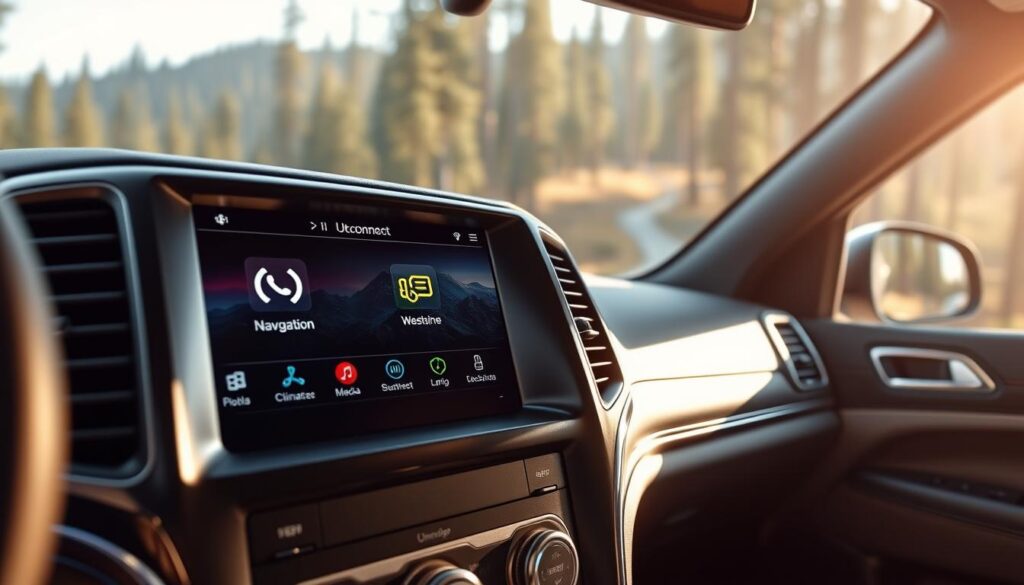 Understanding how to effectively use this interface is crucial for maximizing the benefits of your Jeep Grand Cherokee’s infotainment system.
Why You Might Need to Reset Your Jeep Grand Cherokee Screen
A malfunctioning infotainment screen can be a significant inconvenience for Jeep Grand Cherokee drivers. The advanced technology integrated into these vehicles, while enhancing the driving experience, can sometimes lead to issues that require a reset.
Common Screen Freezing and Lagging Issues
One of the most common problems Jeep Grand Cherokee owners face is their screen freezing or lagging. This can be due to software glitches or excessive cache buildup. Resetting the screen can often resolve these issues, restoring the system’s responsiveness.
Bluetooth and Connectivity Problems
Bluetooth connectivity issues are another reason you might need to reset your screen. When your vehicle’s Bluetooth system fails to connect or drops calls frequently, a reset can help reestablish a stable connection.
Navigation and App Malfunctions
Malfunctions in navigation and other integrated apps can also necessitate a reset. If your GPS isn’t directing you correctly or apps are not functioning as expected, resetting the screen can often rectify these problems.
After Software Updates
Sometimes, after a software update, the infotainment system may require a reset to properly integrate the new changes. This ensures that all features function correctly and efficiently.
| Issue | Possible Cause | Resolution |
|---|---|---|
| Screen Freezing | Software glitch or cache buildup | Reset the screen |
| Bluetooth Connectivity Issues | System failure or interference | Reset Bluetooth settings |
| Navigation Malfunctions | Software issue or data corruption | Reset navigation system |
Preparation Before Resetting Your Screen
A successful reset of your Jeep Grand Cherokee’s screen starts with proper preparation. This involves a few key steps to ensure that you don’t lose important settings or preferences during the reset process.
Backing Up Important Settings
Before you begin the reset process, it’s essential to back up any important settings or preferences you’ve configured in your Jeep Grand Cherokee’s infotainment system. This includes saved navigation locations, paired devices, and customized display settings.
Recording Radio Presets and Favorite Locations
Take a moment to record your radio presets and favorite navigation locations. This will save you time after the reset, as you’ll be able to quickly restore these settings. You can use the table below to jot down your presets and locations.
| Preset # | Station |
|---|---|
| 1 | FM 101.1 |
| 2 | AM 630 |
| 3 | FM 95.5 |
Optimal Conditions for Performing a Reset
Ensure your vehicle is in a safe location and apply the parking brake before starting the reset process. It’s also recommended to turn off any unnecessary electrical accessories to prevent potential interference.
As emphasized by experts, “A well-prepared reset process can save you time and frustration in the long run.”
“When dealing with complex systems like the Uconnect infotainment system, it’s crucial to follow a methodical approach to troubleshooting and maintenance.”
How to Reset Jeep Grand Cherokee Screen: The 3-Step Process
The process of resetting your Jeep Grand Cherokee’s screen involves three key steps that can help resolve common issues such as freezing, lagging, or connectivity problems. This comprehensive guide will walk you through each step, ensuring that you can effectively troubleshoot and potentially fix the problems you’re experiencing with your vehicle’s infotainment system.
Step 1: Perform a Soft Reset
A soft reset is the first and simplest step in troubleshooting your Jeep Grand Cherokee’s screen issues. It’s a non-invasive process that can resolve minor glitches without affecting your saved settings or data.
Press and Hold Power Button Method
To perform a soft reset, start by pressing and holding the power button on your Uconnect system. Hold it for about 10-15 seconds until the screen turns off and then back on. This action restarts the system without erasing any of your saved preferences.
Expected Results and Timing
The soft reset process is quick and should not take more than a minute to complete. If your issue is minor, such as a temporary freeze, this step may resolve the problem. However, if the issue persists, proceed to the next step.
Step 2: Execute a Hard Reset Through Settings
If a soft reset doesn’t resolve the issue, the next step is to perform a hard reset through your Uconnect system’s settings. This process will restore the system to its factory settings, so it’s essential to back up any important data beforehand.
Accessing the Reset Menu
Navigate to the “Settings” menu on your Uconnect system, then look for the “System” or “System Information” section. Here, you should find an option to reset the system to its default settings.
Selecting the Appropriate Reset Option
Choose the reset option that best suits your needs. Some systems may offer different types of resets, such as a “Partial Reset” or “Full Reset.” A full reset will erase all saved settings and data, so use this option with caution.
Confirming and Completing the Process
Once you’ve selected the reset option, confirm your choice. The system will then proceed to reset, which may take a few minutes. Be patient and let the process complete.
Step 3: Battery Disconnect Method (When All Else Fails)
If the above steps don’t resolve the issue, you may need to resort to the battery disconnect method. This step should be taken with caution and is generally considered a last resort.
Safety Precautions and Tools Needed
Before disconnecting your battery, ensure you have the necessary tools, such as a wrench or pliers, and follow proper safety precautions to avoid any electrical shock or damage to your vehicle’s electrical system.
Step-by-Step Disconnection Procedure
- Turn off your vehicle’s engine and all electrical accessories.
- Locate the negative battery cable and loosen the nut holding it in place.
- Carefully pull the negative cable off the battery post.
- Wait for about 15-30 minutes to allow any residual power to dissipate.
Proper Reconnection and System Reboot
After the waiting period, reconnect the negative battery cable and tighten the nut securely. Start your vehicle and let it run for a few minutes to allow the system to reboot.
| Reset Method | Description | Impact on Saved Data |
|---|---|---|
| Soft Reset | Press and hold the power button until the screen restarts. | No data lost |
| Hard Reset | Reset through the settings menu to factory defaults. | All saved settings and data erased |
| Battery Disconnect | Disconnect the negative battery cable and wait before reconnecting. | May reset some vehicle settings; check your vehicle’s manual |
Troubleshooting Post-Reset Issues
Troubleshooting post-reset issues with your Jeep Grand Cherokee’s screen can help resolve lingering problems. After a reset, some issues might persist or new ones might arise, requiring further attention.
Dealing with Persistent Problems
If you continue to experience issues such as screen freezing or lagging, try restarting your vehicle or performing another soft reset. Persistent problems may indicate a deeper issue that requires professional diagnosis.
Restoring Lost Settings and Preferences
After a reset, you may need to reconfigure your settings and preferences. This includes re-pairing your Bluetooth devices, resetting your radio presets, and re-entering your navigation favorites.
When to Contact Your Dealer
If you’ve tried troubleshooting and the problem persists, it may be time to contact your authorized Jeep dealer. They can diagnose and repair any underlying issues that may require software updates or hardware repairs.
Software Update Considerations
Regular software updates can prevent many issues and improve the overall performance of your Jeep Grand Cherokee’s infotainment system. Check with your dealer to ensure your system is up-to-date.
Maintaining Your Jeep Grand Cherokee’s Infotainment System
Resetting your Jeep Grand Cherokee screen can resolve various issues related to the Uconnect system, such as freezing, lagging, or connectivity problems. By following the 3-step process outlined in this article, you can restore your infotainment system to its optimal functioning state.
Regular maintenance of your vehicle’s Uconnect system is crucial for a seamless driving experience. This includes updating software, backing up important settings, and performing resets when necessary. By doing so, you can ensure that your Jeep Grand Cherokee’s infotainment system continues to provide you with a safe and enjoyable driving experience.
Whether you’re dealing with a frozen screen or connectivity issues, resetting your Jeep Grand Cherokee screen is a straightforward process that can be done at home. For persistent problems, it’s always best to consult with a dealership or a certified mechanic for further assistance with the Uconnect system reset.
FAQ
What is the Uconnect system in my Jeep Grand Cherokee?
The Uconnect system is the infotainment system used in Jeep Grand Cherokee vehicles, offering features such as navigation, Bluetooth connectivity, and app integration.
Why is my Jeep Grand Cherokee screen frozen?
A frozen screen can be caused by software glitches, overheating, or issues with the touchscreen interface. Performing a reset can often resolve this issue.
How do I backup my important settings before resetting my Jeep Grand Cherokee screen?
To backup your settings, navigate to the settings menu, locate the backup or save settings option, and follow the on-screen instructions to save your preferences to a USB drive or note them down manually.
What is the difference between a soft reset and a hard reset?
A soft reset is a simple restart of the system, while a hard reset involves restoring the system to its factory settings, erasing all saved preferences and data.
Will resetting my Jeep Grand Cherokee screen delete my radio presets?
A hard reset will erase saved radio presets, so it’s recommended to record them before performing the reset.
How do I perform a soft reset on my Jeep Grand Cherokee’s infotainment system?
To perform a soft reset, press and hold the power button until the system shuts down, then wait a few seconds and turn it back on.
What should I do if none of the reset methods work?
If none of the reset methods resolve the issue, it’s recommended to contact your authorized Jeep dealer for further assistance or to check for any software updates.
Can I update the software of my Jeep Grand Cherokee’s Uconnect system?
Yes, software updates can be performed using a USB drive with the update file, which can be downloaded from the Jeep or Uconnect website.
How often should I update my Jeep Grand Cherokee’s Uconnect system software?
It’s recommended to check for software updates regularly, as they often include bug fixes, security patches, and new features.
Will a reset resolve Bluetooth connectivity issues in my Jeep Grand Cherokee?
A reset may resolve Bluetooth connectivity issues, but if the problem persists, you may need to re-pair your device or check for software updates.