Experiencing a black screen on your Tesla can be frustrating. This issue can arise due to various reasons, including display issues or software glitches.
Owners of Tesla vehicles have reported instances where the screen suddenly goes black, leaving them unable to access vital functions. Understanding the causes and finding effective solutions is crucial.
This article will delve into the possible reasons behind the Tesla screen turning black and provide step-by-step guidance on how to troubleshoot and potentially repair the issue.
Key Takeaways
- Identify the possible causes of Tesla screen turning black
- Learn troubleshooting steps to resolve the issue
- Understand when to seek professional Tesla screen repair
- Discover preventive measures to avoid future display issues
- Explore software updates and their role in fixing the problem
Understanding Tesla’s Display System
Understanding the intricacies of Tesla’s display system is crucial for diagnosing and resolving issues like the black screen problem. Tesla’s display system is a complex interplay of hardware and software that controls various aspects of the vehicle’s operation.
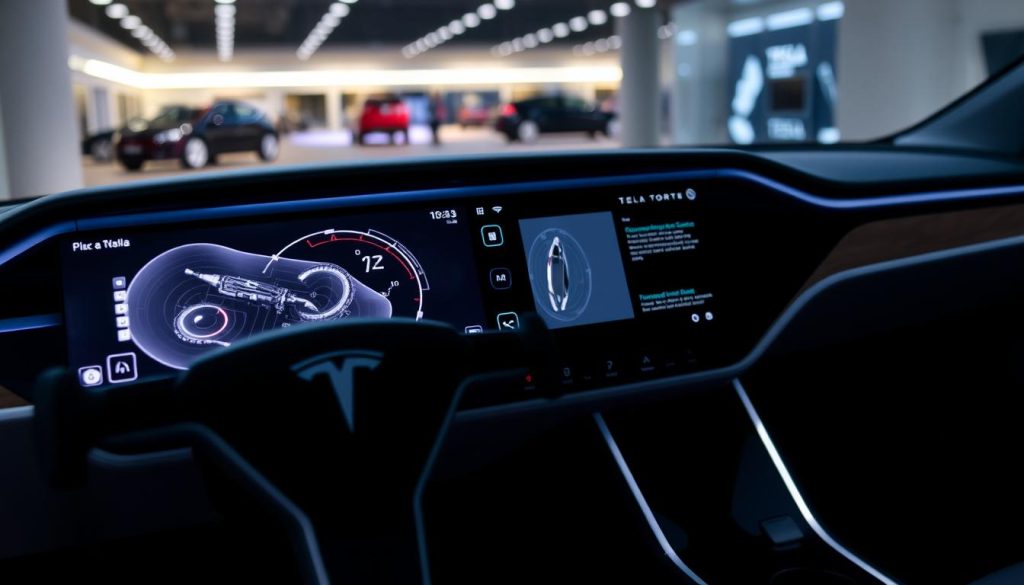
The Central Touchscreen’s Role in Tesla Vehicles
The Central Touchscreen is the primary interface between the driver and the vehicle, controlling everything from navigation to climate control. It is a highly interactive and responsive system that provides real-time feedback to the user.
How the Tesla MCU (Media Control Unit) Works
The Tesla MCU (Media Control Unit) is a critical component of the display system, responsible for processing and rendering the graphical user interface. It works in tandem with the Central Touchscreen to provide a seamless user experience, handling tasks such as displaying maps, controlling media playback, and managing vehicle settings.
Why Does Tesla Screen Go Black: Common Causes and Solutions
The Tesla screen turning black is a problem that can stem from various technical issues, ranging from software glitches to hardware failures. Understanding these causes is crucial for identifying and potentially fixing the issue.
Software Glitches and System Crashes
Software glitches are a common cause of the black screen issue in Teslas. These glitches can occur due to bugs in the system software or conflicts between different software components. Restarting the system or performing a soft reset can often resolve these issues. However, in some cases, a more thorough investigation may be required to identify and fix the root cause.
Hardware Failures and Component Issues
Hardware failures, including issues with the Media Control Unit (MCU) or the display itself, can also lead to a black screen. Hardware faults may require professional diagnosis and repair. In some instances, components like the eMMC card in older Tesla models can fail, necessitating replacement.
Temperature-Related Problems
Extreme temperatures can affect the performance of Tesla’s screen. Both high and low temperatures can cause the screen to malfunction or go black. Ensuring that your Tesla is parked in a moderate environment or using climate control features can help mitigate these issues.
Battery and Power Supply Issues
Battery or power supply problems can also contribute to screen failures. A faulty battery or issues with the power supply system can lead to insufficient power being delivered to the screen, causing it to go black. Checking the battery health and ensuring that the power supply system is functioning correctly is essential.
Immediate Troubleshooting Steps
When your Tesla screen turns black, it can be alarming, but there are immediate steps you can take to troubleshoot the issue. The key is to methodically go through the troubleshooting process to identify and potentially fix the problem.
Performing a Soft Reset of Your Tesla Screen
A soft reset is often the first step in resolving screen issues. It’s a simple process that can reboot the system without losing any data.
Model 3 and Model Y Reset Procedure
For Model 3 and Model Y, press and hold both scroll buttons on the steering wheel until the screen restarts. This process can take a few seconds.
Model S and Model X Reset Procedure
For Model S and Model X, press and hold the two scroll buttons on the steering wheel and the brake pedal until the screen restarts.
Executing a Hard Reset When Soft Reset Fails
If a soft reset doesn’t work, the next step is to perform a hard reset. This process is more comprehensive and can resolve deeper software issues.
To perform a hard reset, you’ll need to press and hold the power button on the touchscreen or the equivalent buttons on your model’s steering wheel. The exact procedure may vary depending on your Tesla model, so it’s a good idea to consult your owner’s manual.
Power Cycling Your Tesla Completely
If a hard reset doesn’t resolve the issue, the next step is to power cycle your Tesla completely. This involves turning off your Tesla, opening the doors, and letting it sit for a few minutes before restarting.
Power cycling can help reset the electrical system and may resolve issues related to power supply or system crashes.
| Troubleshooting Step | Description | Model Applicability |
|---|---|---|
| Soft Reset | Reboot the system without losing data | All Models |
| Hard Reset | Comprehensive reset to resolve deeper software issues | All Models |
| Power Cycling | Reset the electrical system | All Models |
Advanced Fixes for Persistent Black Screen Issues
If your Tesla screen remains black after attempting initial troubleshooting steps, it’s time to delve into more advanced solutions. These fixes are designed to address more complex issues that may be causing the screen to malfunction.
Updating Tesla Software Remotely or Manually
One of the first advanced steps is to ensure your Tesla’s software is up to date. Tesla frequently releases updates that can fix known issues, including those related to the screen. To update your Tesla software, navigate to the ‘Software Update’ section in your vehicle’s settings. If an update is available, follow the prompts to download and install it. For more detailed instructions on updating your Tesla software, you can refer to our guide on resetting your Tesla, which also covers software updates.
Diagnosing and Addressing MCU Failures
The Media Control Unit (MCU) is a critical component of Tesla’s display system. If the MCU fails, it can cause the screen to go black. Diagnosing an MCU failure typically requires professional assistance, as it involves checking the unit’s firmware and hardware for faults. If the MCU is found to be faulty, it may need to be replaced by a Tesla-certified technician.
Resolving eMMC Card Issues in Older Tesla Models
Older Tesla models use an eMMC (embedded MultiMediaCard) for storage, which can sometimes become corrupted, leading to screen issues. Resolving eMMC card issues often requires reflashing or replacing the card. This process is complex and should be performed by a professional to avoid further damage to your Tesla’s system.
Managing Temperature-Related Screen Failures
Extreme temperatures can cause the Tesla screen to malfunction. Ensuring your vehicle is parked in a moderate environment or using sunshades to reduce heat can help. Additionally, Tesla’s climate control system can be used to cool down the interior. In cases where temperature-related issues are suspected, having your Tesla inspected by a professional can help identify and mitigate the problem.
| Issue | Advanced Fix | Professional Assistance Required |
|---|---|---|
| Software Issues | Update Tesla Software | No |
| MCU Failure | Diagnose and Replace MCU | Yes |
| eMMC Card Issues | Reflash or Replace eMMC Card | Yes |
| Temperature-Related Issues | Manage Vehicle Temperature | Optional |
When to Contact Tesla Service
If your Tesla screen remains black despite troubleshooting, it’s time to seek professional help from Tesla Service. Persistent display issues can be a sign of a more complex problem that requires expert attention.
Determining If Your Issue Is Covered Under Warranty
Before contacting Tesla Service, it’s essential to determine if your issue is covered under warranty. Check your vehicle’s warranty documentation or contact Tesla directly to verify coverage. If your Tesla is still under warranty, you may be eligible for free repairs or replacements. For more information on troubleshooting common issues, you can visit this resource on screen problems in other vehicles.
Preparing for Your Tesla Service Appointment
To ensure a smooth service experience, prepare for your appointment by gathering relevant information. This includes your vehicle’s identification number (VIN), a detailed description of the issue, and any relevant error messages. Being prepared will help Tesla Service diagnose and address the problem efficiently.
Understanding Costs for Screen Repairs and Replacements
If your Tesla is no longer under warranty, it’s crucial to understand the potential costs for screen repairs or replacements. The cost can vary depending on the model and the extent of the damage. Tesla Service will provide a detailed estimate before proceeding with any repairs. Be sure to ask about any additional costs or fees associated with the service.
Tesla’s Extended Warranty Programs for Screen Issues
Tesla offers extended warranty programs that may cover screen issues beyond the standard warranty period. These programs can provide additional peace of mind and financial protection. Contact Tesla Service to inquire about available extended warranty options and their associated costs.
By understanding when to contact Tesla Service and what to expect, you can ensure that your Tesla’s display issues are resolved efficiently and effectively.
Conclusion
Resolving Tesla screen black issues requires a systematic approach, starting with understanding the display system’s components and their potential failure points. By identifying the root cause, whether it’s a software glitch, hardware failure, or temperature-related problem, you can apply the appropriate fix.
The troubleshooting steps outlined in this article, from performing soft and hard resets to updating Tesla software and diagnosing MCU failures, provide a comprehensive framework for addressing the issue. In many cases, these steps can resolve the problem, restoring your Tesla’s screen to full functionality.
For persistent issues, knowing when to contact Tesla Service is crucial. Understanding your warranty coverage and preparing for your service appointment can help streamline the repair process. By following this troubleshooting summary, you can effectively resolve Tesla screen issues and get back to enjoying your vehicle’s advanced features.
FAQ
What are the common causes of Tesla screen turning black?
The common causes include software glitches, hardware failures, temperature-related problems, and battery or power supply issues.
How do I perform a soft reset on my Tesla screen?
To perform a soft reset, press and hold both scroll buttons on the steering wheel for Model S and Model X, or press and hold both scroll buttons on the steering yoke for Model 3 and Model Y, until the screen restarts.
What is the difference between a soft reset and a hard reset?
A soft reset restarts the system without losing any data, while a hard reset forces the system to shut down and restart, potentially resolving more serious issues.
Can I update my Tesla software manually?
Yes, you can update your Tesla software manually by going to the ‘Software Update’ section in your vehicle’s settings and selecting ‘Update’ if an update is available.
How do I know if my Tesla issue is covered under warranty?
Check your warranty status by logging into your Tesla account on the Tesla website or by contacting Tesla Service directly with your vehicle’s VIN.
What are the costs associated with Tesla screen repairs or replacements?
Costs vary depending on the model, age of the vehicle, and whether the issue is covered under warranty. Contact Tesla Service for a detailed estimate.
How can I prevent my Tesla screen from turning black due to temperature-related issues?
Park your Tesla in shaded areas or use a sunshade to reduce direct sun exposure, and avoid extreme temperatures to minimize the risk of temperature-related screen issues.
What is the Media Control Unit (MCU) and how does it affect my Tesla’s screen?
The MCU is a critical component that controls the infotainment system, including the screen. Issues with the MCU can cause the screen to turn black or malfunction.