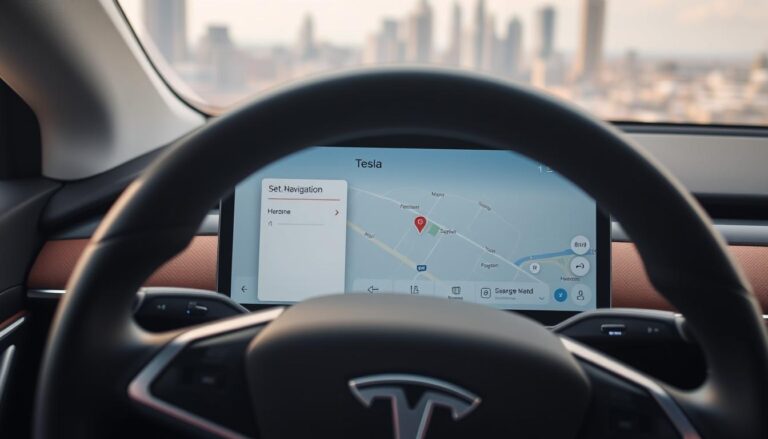
Tesla owners are always looking for ways to enhance their driving experience. One effective way to do this is by integrating Waze navigation into their Tesla cars. This integration offers a more informed and safer driving experience.
By leveraging Waze integration, Tesla drivers can benefit from real-time traffic updates, road hazard alerts, and more. This not only makes the journey more efficient but also reduces the stress associated with navigating through unfamiliar or congested areas.
Using Waze in Tesla vehicles is a straightforward process that can significantly enhance the driving experience. With the ability to receive real-time updates and alerts, drivers can make more informed decisions on the road.
Key Takeaways
- Enhance your Tesla’s navigation system with Waze integration.
- Receive real-time traffic updates and road hazard alerts.
- Make more informed driving decisions with live data.
- Reduce driving stress with more accurate navigation.
- Improve your overall driving experience.
Why Tesla Drivers Need Waze Navigation
For Tesla owners, incorporating Waze navigation can be a game-changer in terms of real-time traffic updates and community-driven features. While Tesla’s native navigation is comprehensive, Waze offers unique benefits that enhance the driving experience.
Benefits of Waze’s Real-Time Traffic Updates
Waze’s real-time traffic updates are a significant advantage for Tesla drivers. By providing current traffic conditions, Waze helps drivers navigate through congested roads more efficiently.
Crowd-Sourced Accident and Hazard Reporting
One of the key features of Waze is its crowd-sourced reporting. Users can report accidents, hazards, and road closures, which are then shared with other drivers in real-time. This feature allows Tesla drivers to anticipate and avoid potential hazards, making their journey safer.
Police and Speed Trap Notifications
Waze also provides notifications about police presence and speed traps. This feature helps Tesla drivers stay alert and avoid speeding tickets, contributing to a safer driving environment.
Community-Driven Features Missing in Tesla Navigation
Tesla’s native navigation lacks the community-driven features that make Waze so effective. The social aspect of Waze, where users contribute to the navigation experience, is a significant advantage for Tesla drivers looking for a more dynamic and responsive navigation system.
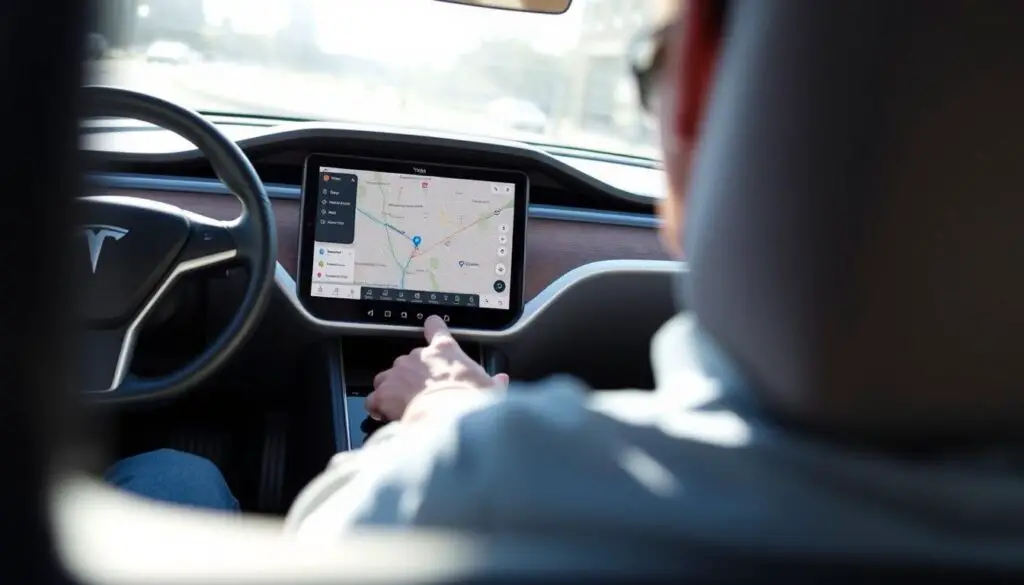
Tesla’s Native Navigation vs. Waze: A Comparison
When it comes to navigation, Tesla owners have two viable options: Tesla’s native navigation system and Waze. Understanding the strengths and weaknesses of each can help drivers make informed decisions about their navigation needs.
Strengths of Tesla’s Built-in Navigation System
Tesla’s native navigation system is designed to integrate seamlessly with the vehicle’s features.
Supercharger Integration and Battery Management
The system provides real-time updates on Supercharger availability and optimizes routes based on the vehicle’s battery level.
Seamless Autopilot Coordination
It also works in tandem with Tesla’s Autopilot system, enhancing the overall driving experience.
Where Waze Outperforms Tesla’s Navigation
Waze excels in providing real-time traffic updates and community-driven features that are not always available in Tesla’s native system.
Why Some Drivers Use Both Systems
Many Tesla owners choose to use both navigation systems to leverage their respective strengths.
| Feature | Tesla Navigation | Waze |
|---|---|---|
| Supercharger Integration | Yes | No |
| Real-Time Traffic Updates | Limited | Yes |
| Autopilot Coordination | Yes | No |
How to Use Waze in Tesla: Available Methods
Integrating Waze into your Tesla experience is straightforward, with several approaches available. Tesla owners can choose the method that best suits their needs, ensuring a more efficient and informed driving experience.
Browser Method Overview
One way to access Waze in your Tesla is through the vehicle’s browser. By navigating to Waze’s website, you can utilize its navigation features directly on your Tesla’s screen. This method is convenient and doesn’t require any additional hardware.
Smartphone Integration Options
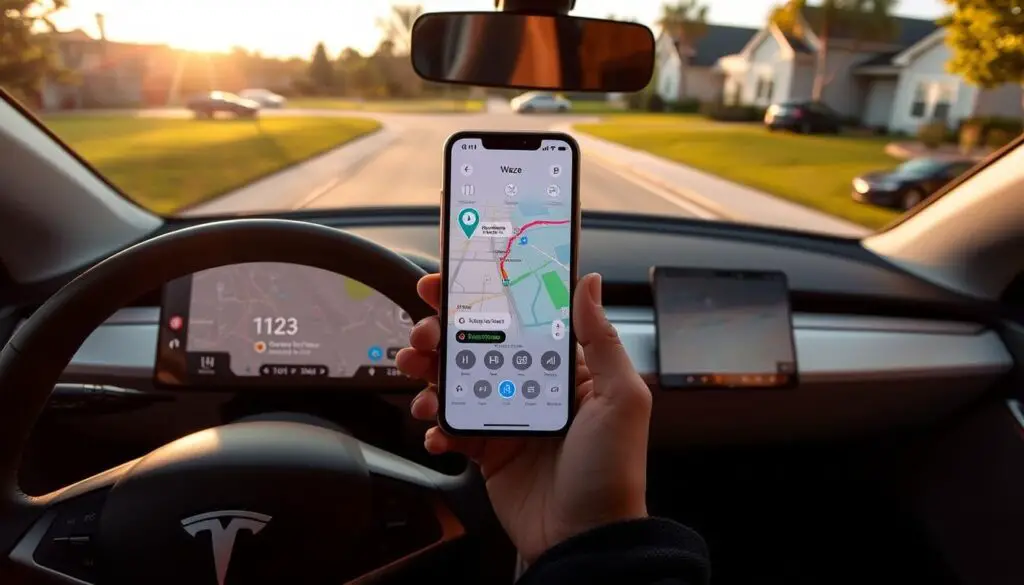
Another approach is to integrate your smartphone with your Tesla. By mounting your phone and connecting it via Bluetooth, you can access Waze through your phone’s app, receiving turn-by-turn directions through your Tesla’s speakers. This method is particularly useful for those who prefer the app version of Waze.
Tesla Theater Mode Workaround
For some Tesla models, the Theater Mode can be used as a workaround to display Waze on the screen while driving. Although primarily intended for entertainment, this feature can be repurposed for navigation.
Limitations While Driving
It’s essential to note that while these methods provide access to Waze, there are limitations, especially when driving. Safety should always be the top priority, and drivers are advised to use these features responsibly.
As Waze’s community-driven features continue to enhance its navigation capabilities, Tesla owners can benefit significantly from integrating Waze into their driving routine. “Waze has revolutionized the way we navigate,” says a long-time user. “Its real-time updates and community features make it indispensable for daily commutes.”
By understanding the available methods and their limitations, Tesla owners can make an informed decision about how to best use Waze in their vehicles.
Setting Up Waze on Your Tesla’s Browser
Using Waze on your Tesla’s browser is a straightforward process that can significantly improve your navigation experience. This method allows you to access Waze’s real-time traffic updates and community-driven features directly on your Tesla’s screen.
Accessing the Tesla Browser
To start, ensure your Tesla is connected to a stable internet connection. Then, navigate to the Tesla app on your car’s screen, select the “Entertainment” tab, and choose the “Browser” option. This will open the Tesla browser, where you can access various web services, including Waze.
Navigating to Waze Web
Once the browser is open, type in the URL for Waze’s web version (waze.com) into the address bar. You can use the on-screen keyboard to enter the URL. After entering the correct URL, press “Go” to load the Waze web page.
Configuring User Settings
After accessing the Waze web page, you may need to configure your user settings. This includes logging into your Waze account, setting your home and work locations, and adjusting other preferences as needed.
Saving Waze as a Bookmark
To make it easier to access Waze in the future, you can save it as a bookmark in the Tesla browser. Look for the “Bookmark” or “Favorite” option in the browser’s menu, and add Waze to your list of saved sites.
Limitations of the Browser Method
While using Waze on your Tesla’s browser is convenient, there are some limitations to be aware of. These include potential issues with browser stability, the need for a stable internet connection, and the lack of integration with Tesla’s native features like steering wheel controls.
Using Waze via Smartphone While Driving Your Tesla
Tesla owners can enhance their driving experience by using Waze on their smartphones while on the road. This method allows drivers to access Waze’s real-time traffic updates and community-driven features directly on their phone.
Phone Mounting Options for Different Tesla Models
To safely use Waze on your smartphone while driving, you’ll need a reliable phone mount. There are various options available, including dashboard mounts and air vent attachments.
Dashboard Mounts vs. Air Vent Attachments
Dashboard mounts provide a stable base, while air vent attachments offer easy installation and removal. The choice between the two often depends on personal preference and the specific Tesla model.
Cable Management Solutions
Effective cable management is crucial for a clutter-free setup. Consider using cable clips or adhesive cable organizers to keep your charging cable and other wires tidy.
Setting Up Bluetooth Audio for Turn-by-Turn Directions
To receive turn-by-turn directions from Waze through your Tesla’s speakers, you’ll need to connect your smartphone to the vehicle’s Bluetooth system.
Power Management Tips for Extended Drives
For extended drives, it’s essential to keep your smartphone charged. Consider using a high-power USB-C car charger or enabling wireless charging if your Tesla is equipped with it.
| Mounting Option | Ease of Installation | Stability |
|---|---|---|
| Dashboard Mount | Moderate | High |
| Air Vent Attachment | Easy | Medium |
Advanced Waze Integration Techniques for Tesla Owners
For Tesla drivers, integrating Waze goes beyond basic navigation – it’s about creating a smarter driving experience. Advanced techniques can significantly enhance how you use Waze in your Tesla.
Third-Party Apps That Enhance Integration
Several third-party apps can improve how Waze works with your Tesla. These apps offer features like streamlined interfaces and enhanced voice commands. For instance, some apps provide a more intuitive way to interact with Waze on your Tesla’s screen.
Voice Command Workarounds for Safer Operation
Using voice commands is crucial for safe driving. Workarounds like using Bluetooth connectivity or specific apps can make it easier to control Waze with voice commands while driving your Tesla.
Custom Solutions from the Tesla Community
The Tesla community is known for developing innovative solutions. For Waze integration, community-developed projects on platforms like GitHub offer advanced features and customizations.
Popular GitHub Projects and Resources
GitHub hosts several projects focused on enhancing Waze-Tesla integration. These projects range from simple scripts to complex integrations that offer advanced features.
Tesla Owners Club Recommendations
Tesla Owners Clubs often share recommendations on the best third-party apps and custom solutions for Waze integration. These community insights can be invaluable for finding the most effective solutions.
Troubleshooting Common Waze-Tesla Integration Issues
When integrating Waze with Tesla, some users may encounter issues that can be resolved with simple troubleshooting steps. These problems can range from audio routing issues to browser performance concerns.
Fixing Audio Routing Problems
One common issue is audio routing problems, where Waze directions don’t play through the car’s speakers. To fix this, ensure that your phone is connected to Tesla via Bluetooth and that the audio output is set correctly.
- Check Bluetooth connectivity between your phone and Tesla.
- Verify that Waze is set to use the car’s speakers for audio output.
Resolving Browser Performance Issues
If you’re using Waze through Tesla’s browser, you might experience performance issues. Try clearing the browser cache or using a different browser for a smoother experience.
Addressing GPS Accuracy Concerns
Some users report GPS accuracy issues when using Waze with Tesla. Ensure your Tesla’s software is up-to-date, as updates often improve GPS performance.
Safety Considerations When Using Third-Party Navigation
While using Waze or any third-party navigation, it’s crucial to ensure safe driving practices. Use a phone mount, and avoid interacting with the app while driving.
Conclusion: Making the Most of Waze in Your Tesla Experience
Integrating Waze into your Tesla can significantly enhance your navigation experience. By leveraging Waze’s real-time traffic updates and community-driven features, you can enjoy a more efficient and stress-free driving experience.
The methods outlined in this article, from using the Tesla browser to smartphone integration, provide flexibility and convenience. Whether you’re a daily commuter or an occasional long-distance traveler, Waze in Tesla can be a valuable tool.
By combining the strengths of Tesla’s native navigation with the benefits of Waze, you can create a more comprehensive navigation system. This integration can lead to a more enjoyable Tesla experience, with improved route optimization and reduced travel times.
As you continue to explore the capabilities of Waze in your Tesla, you’ll discover new ways to enhance your driving experience. Stay up-to-date with the latest developments in both Waze and Tesla technologies to maximize the benefits of this powerful navigation enhancement.
FAQ
How do I access Waze on my Tesla’s browser?
To access Waze on your Tesla’s browser, navigate to the Tesla browser, type in the Waze website URL, and follow the on-screen instructions to configure your user settings.
Can I use Waze with my Tesla’s native navigation system?
While Tesla’s native navigation system and Waze can be used separately, some drivers choose to use both systems to take advantage of their respective strengths.
How do I mount my phone in my Tesla to use Waze?
You can mount your phone in your Tesla using dashboard mounts or air vent attachments, and manage cables with cable management solutions to keep your driving area organized.
Are there any third-party apps that can enhance Waze integration with my Tesla?
Yes, there are third-party apps and GitHub projects that can enhance Waze integration with your Tesla, offering features such as voice command workarounds and custom solutions.
What are some common issues with Waze-Tesla integration and how can I troubleshoot them?
Common issues include audio routing problems, browser performance issues, and GPS accuracy concerns, which can be addressed by following troubleshooting tips and safety considerations.
Is it safe to use Waze while driving my Tesla?
To use Waze safely while driving your Tesla, ensure you configure your settings before driving, use voice commands or a passenger to input directions, and avoid interacting with the screen while driving.
Can I save Waze as a bookmark on my Tesla’s browser?
Yes, you can save Waze as a bookmark on your Tesla’s browser for easy access, following the steps outlined in the browser setup section.
How do I manage power when using Waze on my smartphone while driving my Tesla?
To manage power when using Waze on your smartphone, consider using a car charger or cable management solutions to keep your phone charged during extended drives.